Meeting Notes in Teams: A Practical Coach's Playbook

Coachful
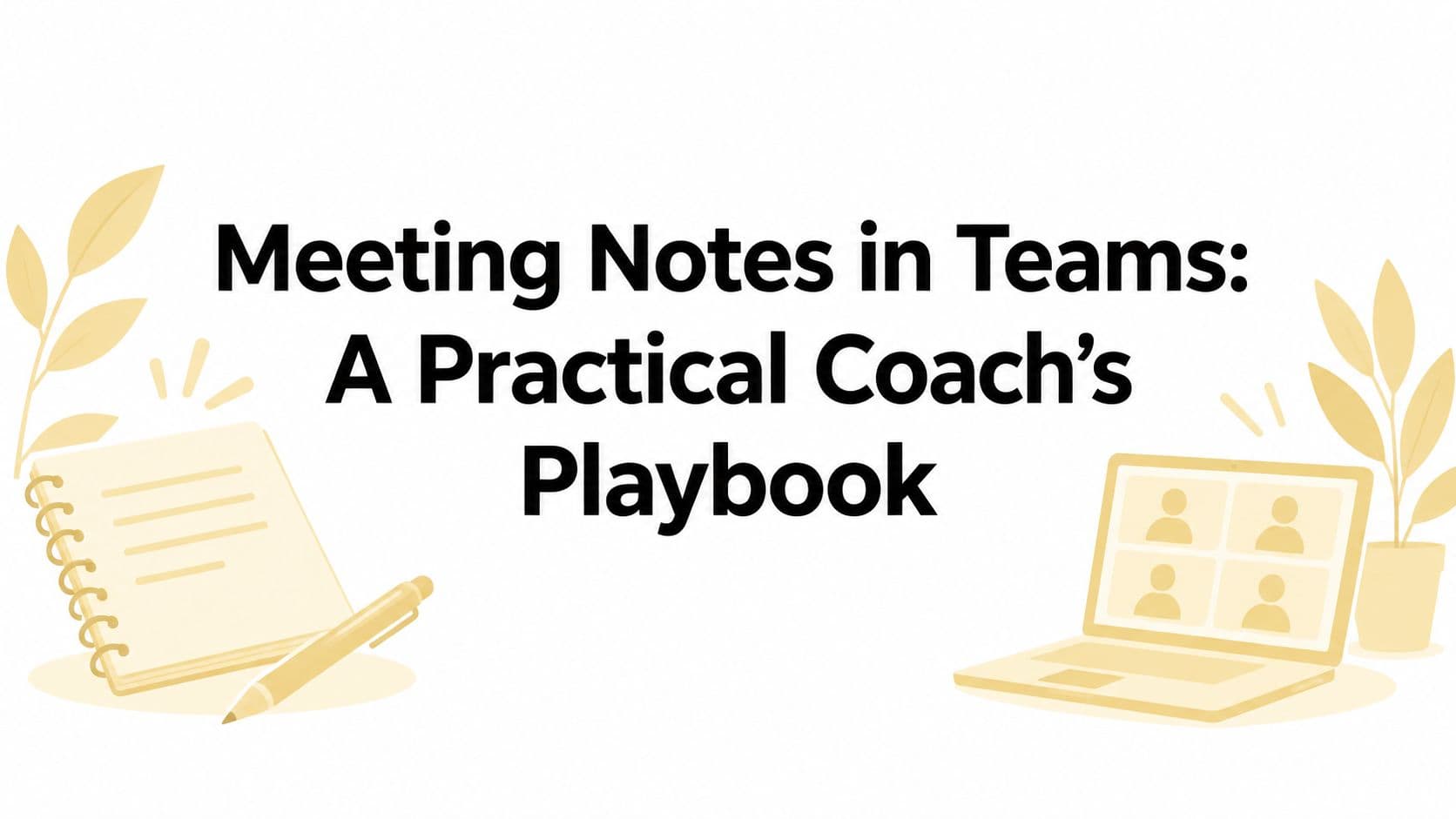
After a discovery call, the client wants a clear summary, the next action is time-sensitive, and you're staring at three browser tabs, a half-erased whiteboard, and Sticky Notes with no obvious owner or deadline. The conversation felt productive, but the record is scattered. That gap is where useful coaching insight gets lost.
Meeting notes in Teams can close it, but only when you stop treating Teams as a video room and start using it as part of your coaching operating system. The practical distinction matters: one artifact supports live coordination, another verifies what was said, and a third becomes the client-facing record you're prepared to stand behind.
The Moment Every Coach Dreads Losing a Session Detail
The call ends. Your client says, “Could you send me the action points by tomorrow?” You agree, then realize the commitment was written in a temporary whiteboard, the client's preferred wording is in a separate document, and your own notes contain an abbreviation that made sense at the time but doesn't now.
You search Teams for the recording, discover it isn't where you expected, and lose more time checking chats and folders. That's when many coaches conclude that documentation is an unavoidable administrative burden. In practice, the problem usually isn't poor memory. The workflow never defined where the session's decisions, evidence, and commitments should live.
Microsoft's own product history supports this shift. Collaborative meeting notes entered Teams Public Preview on June 14, 2023, with shared agendas, notes, and tasks that could connect with Loop, Planner, To Do, Office.com, and OneDrive for Business. Microsoft later extended the experience to channel meetings and replaced the earlier Wiki-based notes experience, moving Teams toward persistent, collaborative records rather than isolated meeting pages. Microsoft's overview of collaborative meeting notes describes that progression in detail.
Practical rule: A session should produce a usable record before you leave the call, not after you've reconstructed it from memory.
For a coaching practice, I separate three artifacts:
- The operational record: A Loop page with the agenda, key observations, decisions, and action items. It helps the coach and client coordinate while the work is happening.
- The verifiable spoken record: A transcript with timestamps and speaker attribution. It helps resolve whether the client said “delegate the task” or “consider delegating the task.”
- The authoritative client deliverable: A reviewed session note that contains only the information the practice has approved for the client record.
Those artifacts shouldn't be confused. A transcript may be more complete, but it isn't automatically suitable for long-term storage. A Loop page may be collaborative, but it can contain rough notes that shouldn't become a permanent client file. An exported session note is cleaner, but it loses context unless the coach validates it against the source.
If recordings or notes appear to vanish, use a defined troubleshooting path rather than searching at random. The guide to recordings missing after a coaching call is useful for checking the handoff between the meeting, storage, and client workflow.
The rest of the process is straightforward: prepare the workspace, choose the right capture layer, verify the result, connect approved actions to your tools, and decide what should be retained. That's what turns Teams notes from a hurried memory aid into infrastructure for continuity between sessions.
Setting Up Your Teams Notes Workspace for Coaching Sessions
Start with the calendar event, not the meeting window. Open the scheduled Teams meeting, select the meeting notes area, and create a repeatable page for the engagement. Microsoft's instructions for taking meeting notes in Teams show the basic interface and access points.
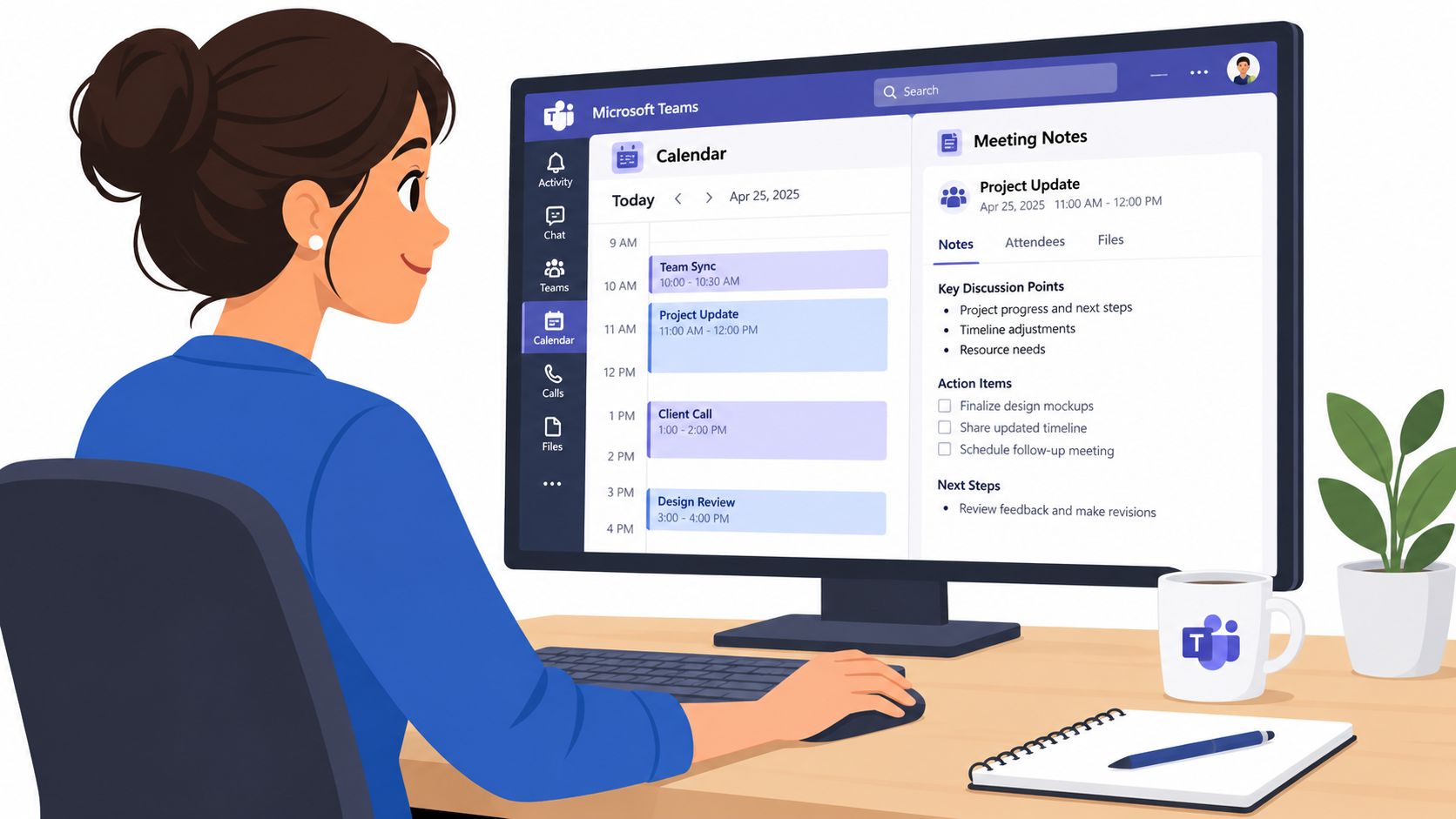
For a discovery call, I'd pin a Loop page with four fixed blocks:
- Client goal: What outcome does the client want from the engagement?
- Agenda: Which part of the goal will this session address?
- Decision log: What did the client choose, reject, or defer?
- Action table: What will happen, who owns it, and when will you revisit it?
Use a consistent naming convention such as the client identifier, session date, and session type. The exact format matters less than consistency. A page named with the client's approved identifier and date is easier to sort in OneDrive than “Meeting notes final new version,” and it reduces the chance of attaching a sensitive note to the wrong engagement.
Before the call, decide whether the client should edit the Loop page. A guest editor can confirm wording and add a commitment directly, which is useful for collaborative accountability. For a sensitive session, keep the page private to the coach and share a reviewed summary afterward. Check the permissions on the underlying OneDrive or Loop file, because access to the page still depends on the meeting and file permissions.
The meeting template should also reflect consent. Don't place a recording or transcription instruction in a template that runs automatically for every client. Put a visible consent check in the pre-call workflow, then choose the meeting settings accordingly. Teams Premium Meeting Templates can support reusable meeting structures where that option is available in your tenant, but a reusable template still needs a human approval step for recording and transcript settings.
If writing during a vulnerable conversation distracts you, voice input can help with short observations between topics. A resource on dictating meeting notes with voice can be useful for coaches who want to capture brief prompts without turning the session into a typing exercise. Keep dictated content inside the approved workspace and review it before it becomes part of a client record.
The sequence during and after the meeting should stay simple:
- Add the agenda before sending the invitation.
- Open Notes during the session.
- Record decisions and commitments, not every sentence.
- Use Record and transcribe only when the policy and consent conditions are satisfied.
- Review the transcript immediately afterward.
- Convert material decisions into tasks with an owner and due date.
- Share the approved note through the meeting chat or recap.
For Outlook-based scheduling, the Microsoft 365 and Teams connection guide can help you keep calendar events and session workflows aligned.
Loop Notes, Live Transcript, and AI Recap Compared
A coach doesn't need to choose one capture method for every session. The useful question is what each layer is allowed to do.
Loop notes are the working surface. You can create the agenda before the call, write decisions during it, and continue editing afterward. They're collaborative and can remain available as a shared page, but they require discipline. If nobody records the commitment, Loop won't infer it. A blank or vague page still produces a blank or vague follow-up.
The live transcript is the verification layer. It creates a searchable written record with timestamps and speaker attribution, which is valuable when a manual note is ambiguous. Accuracy can suffer when audio is poor, speakers interrupt one another, or the spoken-language setting is wrong. A transcript is evidence to review, not an excuse to stop listening.
AI intelligent recap is the speed layer. Microsoft describes recap capabilities that can produce AI-generated notes and recommended tasks, but the relevant features depend on licensing, transcription, recording, and administrator controls. A Teams Premium or Microsoft Copilot license is required for the relevant recap capabilities, and Microsoft warns that AI-generated content may be incorrect. Microsoft's intelligent recap documentation explains those conditions.
| Feature | Loop Notes | Live Transcript | AI Intelligent Recap |
|---|---|---|---|
| Primary purpose | Structure and collaboration | Verification and search | Fast summary and task suggestions |
| Best coaching use | Agenda, decisions, client actions | Checking exact wording and timing | Drafting a recap after consent |
| Main weakness | Requires active capture | Depends on audio, language, and speaker accuracy | Can misinterpret the conversation |
| Continues after the meeting | Yes, as a shared Loop page | Available through meeting artifacts when enabled | Depends on recording and recap availability |
| Appropriate as the final client record | Only after review | Usually not by itself | Never without human verification |
A useful default for a discovery call is Loop for structure, transcript for validation, and recap only where recording and consent are clear. For example, write “client will speak with their manager about delegation” in Loop, use the transcript to confirm whether that was a commitment or merely an idea, then edit the final note to reflect the client's actual decision.
Coaches comparing transcript tools may also find this overview of alternatives to Tactiq for transcripts helpful when evaluating external options. The same rule applies regardless of tool: automation can produce a draft, but the coach owns the accuracy of the stored record.
Connecting Session Notes to Your Coaching Workflow
A validated Loop page should not become a dead document. Its useful content needs to move into the systems where action, continuity, and client history are managed.
Begin with a human review. Remove speculative language, resolve unclear owners, and separate the client's stated commitment from your interpretation. Then classify each item:
- Action: A concrete next step with an owner and due date.
- Context: Information that helps explain the decision.
- Open question: Something that needs discussion rather than task assignment.
- Private observation: A coaching note that shouldn't be shared with the client.
Actions can move into Planner when you need a board view, status tracking, or shared ownership. A coach might create a Planner task such as “Draft delegation conversation,” assign it to the client, and add the next-session date as the review point. Smaller personal reminders can go to To Do, while the reviewed session note can be archived in OneDrive according to the practice's permissions and retention policy.
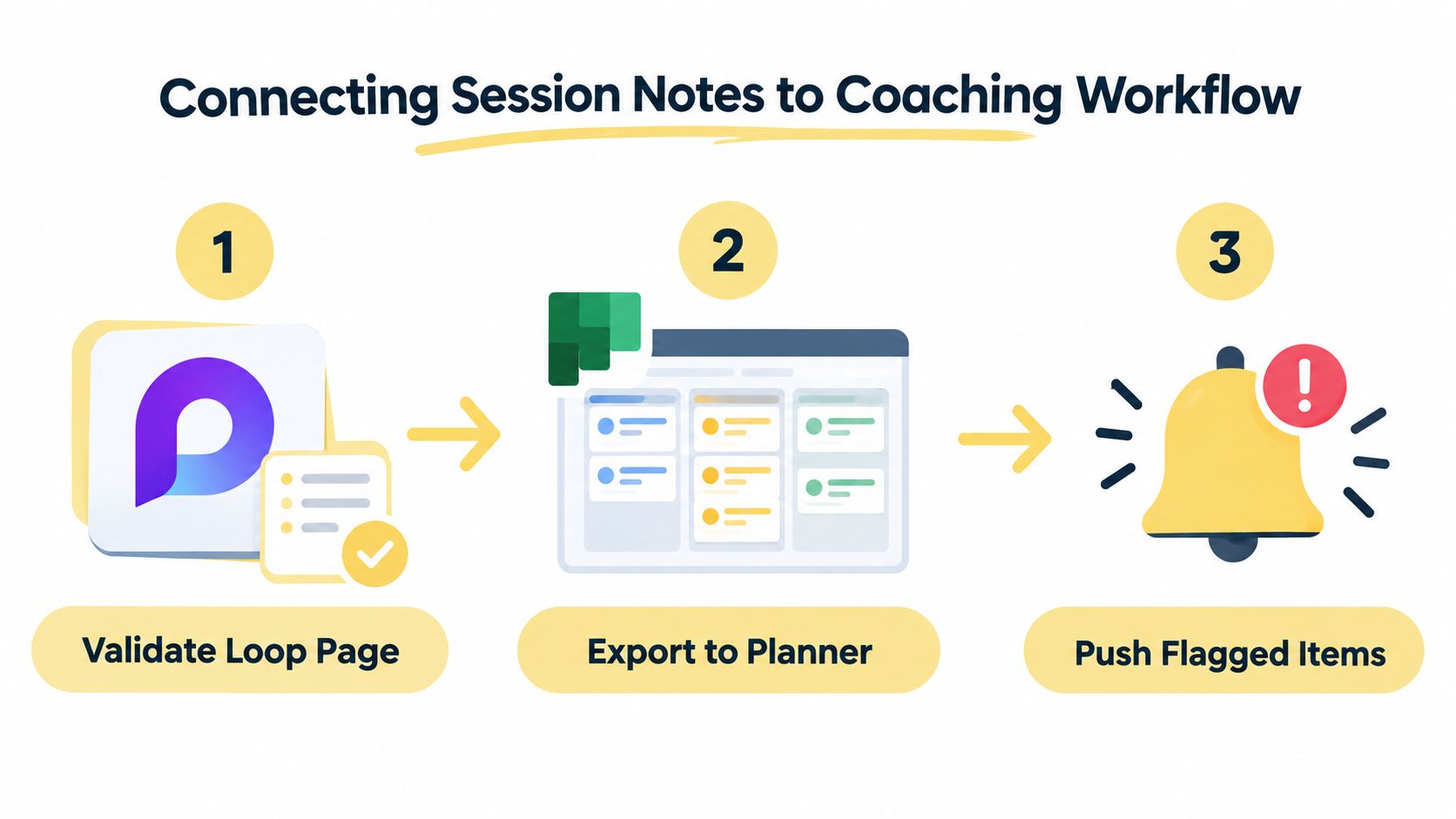
Use a Loop sharing link when the recipient should work in the live page and has the appropriate permissions. Export a .docx when you need a stable, reviewed snapshot for a downstream record, provided the export doesn't bypass your privacy and access controls. The distinction prevents a common mistake: sending a changing draft when the client expects an agreed summary.
For a larger practice, Microsoft Graph can support a controlled integration. Microsoft documents transcript retrieval and the permissions CallTranscripts.Read.All and CallRecordings.Read.All. A reliable sequence is:
- Configure Microsoft Entra permissions for transcript access.
- Subscribe to availability notifications.
- Retrieve the transcript after the meeting.
- Extract decisions, action items, and mentions.
- Reject items without an identifiable owner or due date.
- Write only the approved structured record downstream.
An automation should return an exception when transcription is unavailable. Missing transcription, insufficient permissions, incorrect spoken-language configuration, and uncertain speaker attribution shouldn't create an incomplete client note without raising an error. Microsoft's meeting transcript API documentation covers the programmatic retrieval model.
Power Automate can handle simpler flows, such as copying approved transcript highlights into a client history folder or notifying the coach when a Loop page is ready for review. Don't copy an entire transcript by default. Extract the approved highlights, minimize sensitive content, and preserve the concise validated note as the downstream record.
The operating principle is simple: Teams holds the operational record, while the external coaching system holds the authoritative client record. If they drift apart, trust the approved client record and correct the operational page. A coaching platform that supports session notes, summaries, recordings, transcripts, and next steps can serve as that destination, but the practice must define the handoff rather than assuming synchronization makes every version equally authoritative.
Consent, Retention, and What Counts as the Client Record
Clicking Record is a records-management decision. It determines what gets captured, who may access it, where it may be stored, and what could remain available after the coaching relationship changes.
Before enabling recording or transcription, answer four questions:
- Who has consented? Record the client's consent in writing where your policy or jurisdiction requires it. Explain whether you're capturing audio, video, transcript, or AI-generated notes.
- Where will it live? Identify the storage location, including the organizer's OneDrive or channel-related storage where applicable.
- How long will it remain? Define retention and deletion rules before the first session, not after a client asks for removal.
- Who can access it? Check meeting participants, guests, administrators, integrations, and anyone with a shared file link.
Teams artifacts don't necessarily share one lifecycle. Microsoft Purview documentation explains that user-chat meeting transcripts and recordings rely on retention policies covering the organizer's OneDrive, while channel meeting artifacts follow channel-related storage and policies. Teams retention policies can retain or delete messages, transcripts, recordings, and related content, so a transcript, recording, Loop page, and task may not disappear together. Microsoft's Teams retention policy documentation is the right place to verify how your organization's configuration behaves.
Records decision: Decide first which artifact is authoritative. Then decide what the other artifacts are allowed to retain.
That decision may vary by engagement. For one client, the authoritative record might be a concise reviewed session note containing goals, progress evidence, agreed actions, due date, and follow-up date. For another, the transcript may be retained only temporarily for quality review, while the recording is deleted when its approved expiry arrives.
Consent also needs a withdrawal path. If a client withdraws consent, identify whether the recording, transcript, recap, copied highlights, and backups can be deleted or isolated. If a client requests access or correction, the practice should know which system contains the official note and which systems contain temporary processing artifacts.
Be cautious with health, employment, or performance-sensitive information. GDPR, HIPAA, and ICF ethics considerations may affect the controls your practice needs, but Teams settings alone don't establish compliance. Your contract, privacy notice, jurisdiction, storage configuration, and organizational policy must work together. A practical client record retention and deletion policy can help turn those decisions into a repeatable process.
Redact client names and unnecessary sensitive details before reusing transcript excerpts for supervision, training, or content development. Above all, don't let an auto-generated recap become the de facto client file simply because it arrived first. Unless your agreement explicitly says otherwise, treat it as a draft that requires human review.
Your Repeatable Teams Notes Checklist
A good checklist should be short enough to use when the next client is already waiting. Pin it beside the calendar or add it as a Loop block inside the session template.
Before the meeting
Attach the right template. Start from the client's approved discovery-call or follow-up structure. Confirm that the page is connected to the correct calendar event and engagement.
Check consent status. Don't enable recording or transcription by habit. Confirm the client's consent, the meeting policy, and the storage destination before the call begins.
Queue the agenda. Add the client goal, the decision you need to clarify, and the action review point. A prefilled page gives you something to listen against instead of a blank screen.
Verify access. Decide whether the client will edit the Loop page, view it, or receive a reviewed note later. Check guest access and the permissions on the underlying file.
During the meeting
Capture only what helps the client move forward.
- Log key outcomes: Put decisions in the decision column, not inside a general discussion paragraph.
- Name the owner: Use an @mention when appropriate, then confirm that the person accepts the action.
- Add the due date: Ask, “When will you do that?” A commitment without timing is difficult to review.
- Mark uncertainty: Use an open-question label when the client is exploring rather than deciding.
- Call out timestamps: If transcription is enabled, note the moment where the client states a material commitment or correction.
- Keep coaching present: Don't let the page become a second conversation that pulls your attention away from the client.
Coach's test: If the client opened the page tomorrow, would they know what they chose, what they'll do, and what you'll revisit?
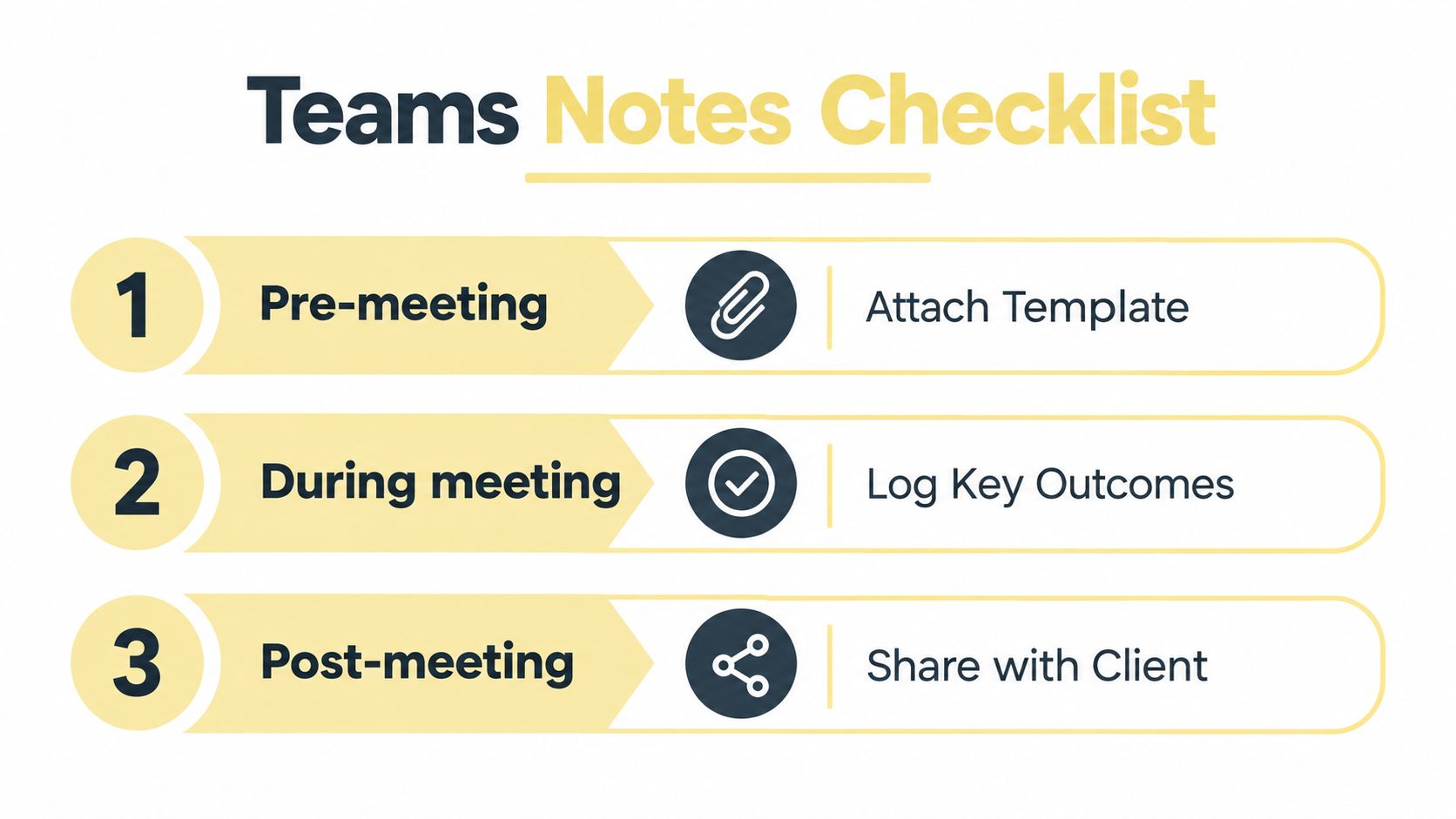
After the meeting
Review the transcript and AI recap if they're available, but don't accept either as final without checking names, commitments, and nuance. Remove sensitive material that doesn't belong in the client deliverable, correct misattributed statements, and convert approved actions into To Do or Planner.
Then export or copy the validated Loop content to the authoritative client record. Trigger the approved Power Automate flow only after that review, and confirm that the downstream task has the correct owner, due date, and client reference. Share the final note through the agreed channel, giving the client a clear opportunity to correct a factual mistake.
Repeat this process until it feels ordinary. The time savings don't come from clicking every Teams feature. They come from using one template, one verification point, one source of truth, and one action handoff for every session.
Coachful brings scheduling, client onboarding, messaging, progress tracking, session notes, and follow-up tasks into one coaching workspace, which can give your validated Teams notes a clear home after the call. Visit Coachful to see how it can support a more consistent session-to-action workflow.