How to Sync Calendar with Outlook Across Devices

Coachful
You're midweek, midflow, and your calendars are already arguing with each other. A client thinks they booked you, Outlook thinks you're free, and you're thinking, "Do I trust the screen or the person?" That's not a tech annoyance. For a coach, that's a credibility problem. When you sync calendar with Outlook the wrong way, you don't get one clean schedule. You get competing versions of your day, and you end up apologizing for software.
When Your Calendars Disagree Mid-Session
It's Tuesday at 2:55 p.m. You're wrapping notes from a powerful session when a message lands: "Looking forward to our 3 p.m.!" You stare at Outlook. Nothing at 3 p.m. You check Google. There it is, or maybe there's a personal appointment in the same slot. Your brain instantly asks, "Which calendar is lying to me, and how long has it been doing this?"
That question matters more than any single double-booking. Once you stop trusting your calendar, you start doing anxious manual work. You screenshot schedules, text clients to reconfirm, keep a backup list in your notes app. You're thinking, "I'm a coach, not an air traffic controller," and you're right.
The Four Questions Behind Every Mess
Most sync failures aren't sync failures. They're setup mismatches from day one. Before you click Connect anywhere, get clear on these four decisions.
- Visibility: Do you just need to see another calendar, or do you need it to block bookings?
- Write access: Should the other system be able to create, move, and cancel sessions, or only read them?
- Freshness: Is "updated later today" fine, or do you need changes reflected before a client books in the next hour?
- Source of truth: If Outlook and Google disagree, which one wins, every time, without debate?
If you can't answer those cleanly, don't connect anything yet. A coach running discovery calls, weekly client sessions, and a cohort needs a different answer than a coach who only wants personal events visible while traveling. Think about how a calendar that handles recurring lessons has to treat a repeated slot as a commitment, not a suggestion. Your coaching calendar needs that same discipline.
If two calendars can both edit the same session, you don't have sync. You have a negotiation, and you'll lose it at the worst possible time.
Your inner dialogue is probably, "I just want it to work everywhere." That's fair, but "everywhere" hides the choice. Do you need a read-only mirror for awareness, real-time availability to prevent conflicts, or true two-way booking where a reschedule in one place moves everywhere? Those are three different setups. Pick the wrong one and you'll spend hours cleaning duplicates, chasing phantom cancellations, and wondering why a session you moved keeps resurrecting on your phone. Pick the right one first, and the actual clicking takes minutes.
The Four Modes of Outlook Calendar Sync
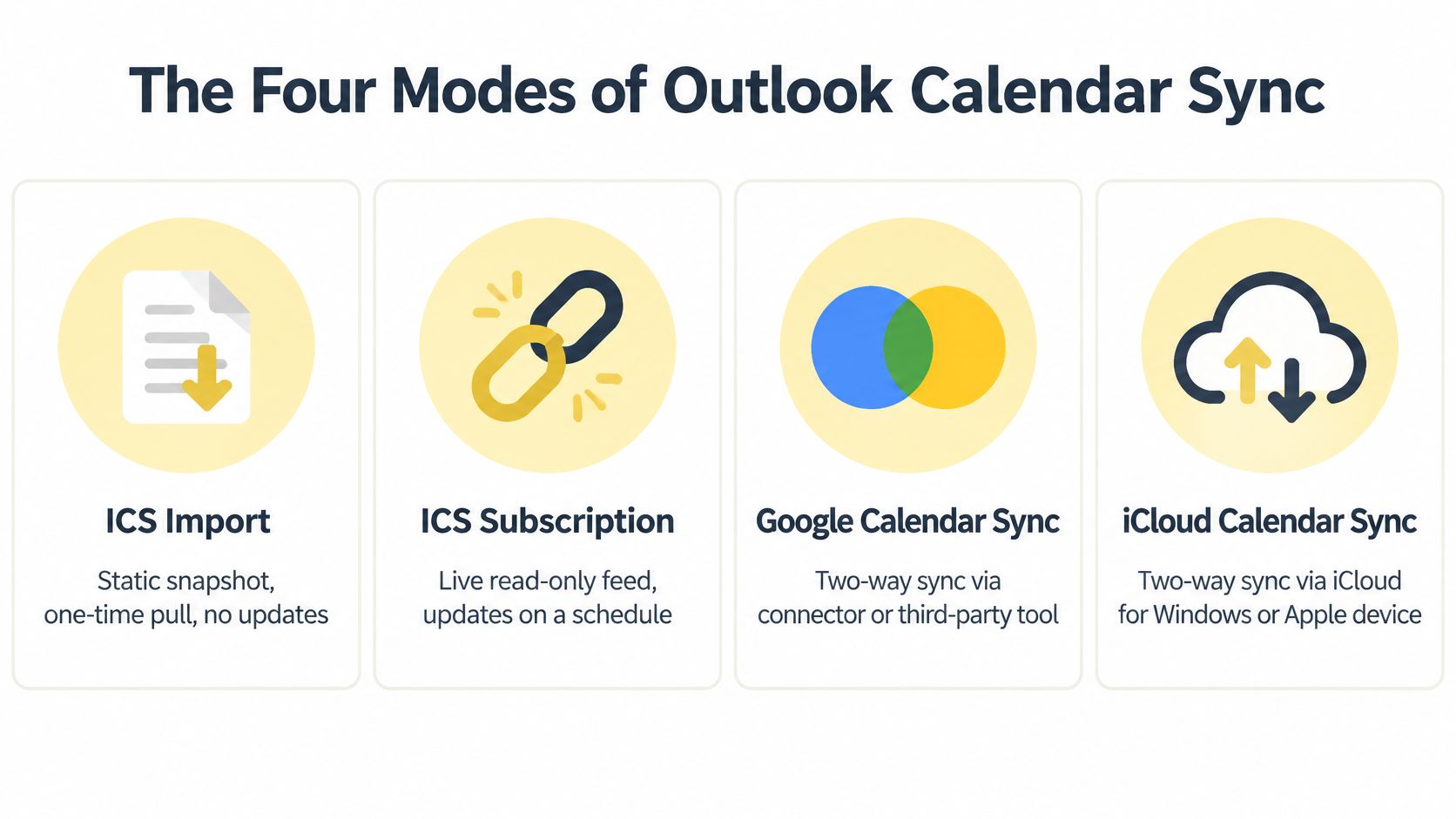
Sync isn't one switch. It's four different agreements between systems, and each one decides who can edit, how fast changes travel, and who controls the refresh clock. Learn the modes and you stop blaming Outlook for doing exactly what you asked it to do.
The infographic below maps the four modes side by side, so you can place your current setup before you change anything.
Mode One and Mode Two Handle Snapshots and Feeds
ICS import is a one-time snapshot. You download an .ics file, Outlook imports those events, and then nothing updates. You add a holiday week later and think, "Why didn't my client see that?" Because they can't. You sent a photograph of a calendar, not a live calendar. Use import only for a fixed, finished schedule, like a past program archive.
ICS subscription is the live but limited cousin. You subscribe to a link and updates flow from the source, but it's read-only. The person viewing it can't edit it, which answers another common worry: "If I share this, can a client move my appointments?" No. They can watch, not touch. The catch is timing. The receiving service decides when to refresh, not you, so a slot you closed an hour ago may still look open on the other side.
Mode Three and Mode Four Handle Sharing and Real Integration
Microsoft 365 sharing works through permissions, and speed depends on tenancy. Microsoft's calendar sharing guidance for Microsoft 365 explains that same-tenant shared calendars sync instantly across supported Outlook clients, while cross-tenant calendars generally update approximately every three hours when external sharing is enabled. Same company, fast. Different organizations, periodic. That's architecture, not a bug you can reconnect away.
Permissions also matter here. View-only levels can show free or busy status, titles and locations, or full details. Editor and delegate access go further, but they're internal tools, not something you hand an external client. Your assistant inside the practice might need delegate rights. Your client almost certainly doesn't.
Graph-based two-way integration is the serious option. Under this approach, a platform authorizes through Microsoft Graph, reads Outlook availability, and writes booked sessions back with proper identifiers so retries don't create duplicates. If you're evaluating that route, review what's involved in connecting Microsoft 365, Outlook, and Teams properly before you authorize broad access.
Practical rule: The more editing power a connection has, the more damage a bad rule can do. Start with the least powerful mode that solves your actual problem.
That last point is contrarian but true. If you only need availability protected, free and busy visibility can be safer than full mirroring. Fewer copied details means fewer duplicates, fewer accidental overwrites, and no private session titles leaking onto a calendar someone else can read. Name your primary need in one sentence now. "I need my personal calendar to block coaching bookings" is a setup brief. "I want everything synced" isn't.
Wiring Outlook to Google Calendar and iCloud
Most coaches aren't living in one ecosystem. You've got a Microsoft 365 account a corporate client gave you, a Google Calendar you've used for years, and an iPhone that thinks it's in charge. You're asking, "Can I just see it all in Outlook and stop checking three apps?" Yes, but seeing and syncing aren't the same verb.
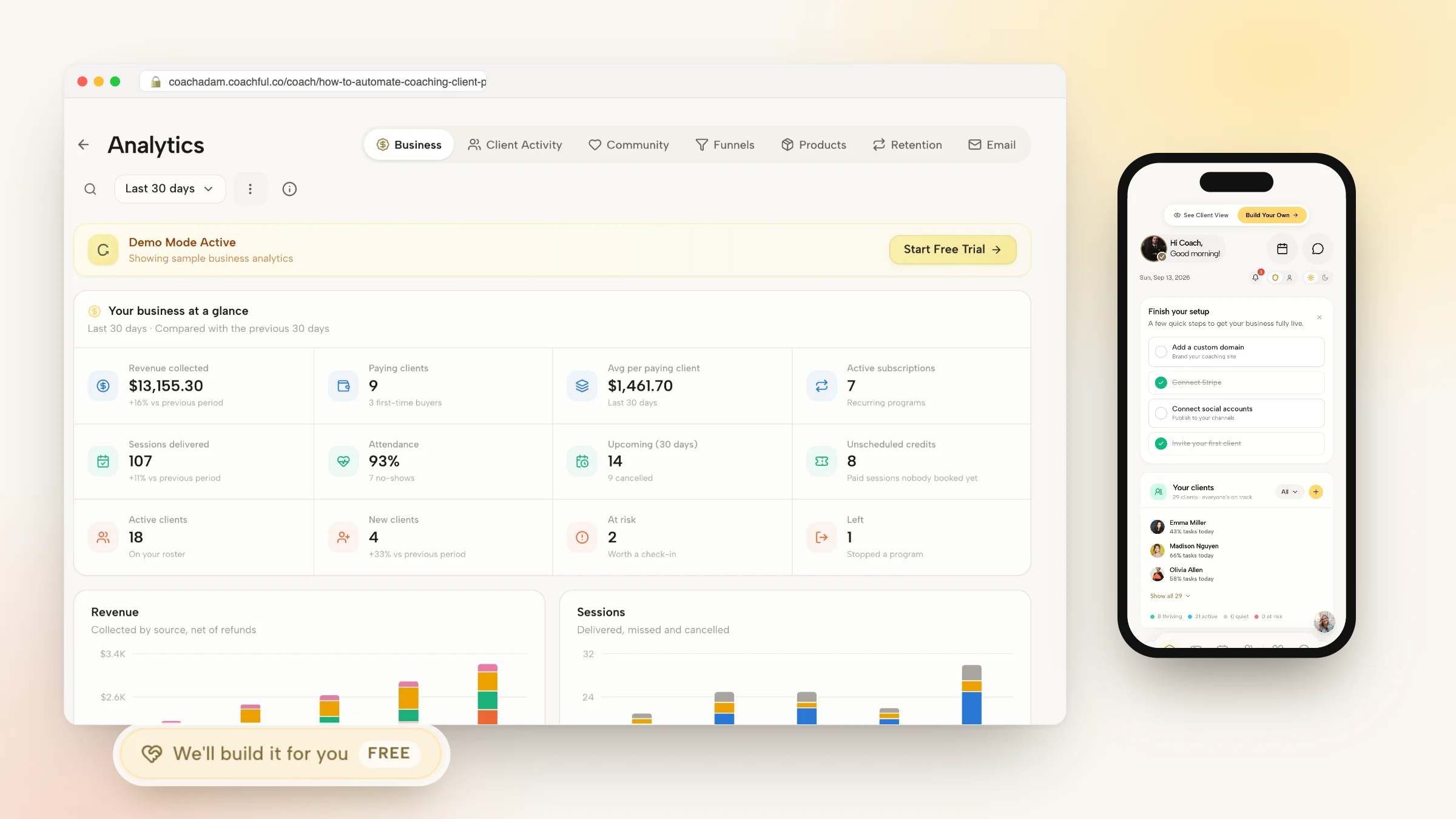
The screenshot below shows what a connected coaching calendar looks like once a platform is reading and writing events, rather than just displaying them.
Adding Google Calendar to Outlook Without Fooling Yourself
Here's the standard path. In Google Calendar, open Settings for the specific calendar, find Integrate calendar, and copy the Secret address in iCal format. Treat that link like a password. Then open Outlook on the web or the new Outlook, choose Add calendar, then Subscribe from web, paste the link, name it clearly, and tick it in your calendar list.
That's a subscription, with everything that implies. Google's guidance on using iCal links with other applications covers adding a calendar elsewhere, but there's no official bidirectional Google to Outlook sync behind that link. You get a read-only, delayed view in Outlook. You don't get to edit a Google event in Outlook and have Google obey. If your inner dialogue is, "But I can see it, so it must be blocking bookings," stop. Visual overlay in one app doesn't guarantee another system checks that calendar before offering a slot.
Verify it properly. Create a test event in Google called SYNC TEST, wait, and confirm where it appears. Then edit it and cancel it in Google and watch what Outlook does. If your booking tool also reads Google directly, check how connecting Google Calendar to your booking system works so you don't create two paths doing half the same job.
Handling iCloud and Mobile Without Creating a Third Calendar
On Windows, iCloud for Windows with the Outlook add-in is the native route for getting iCloud calendars into classic Outlook. On Mac and iPhone, the cleaner pattern is usually adding each account to the device and viewing them together in one app, Apple Calendar or Outlook mobile, instead of forcing copies between accounts. In Outlook for iOS and Android, add the Google, Microsoft, and iCloud accounts directly in the app settings and toggle which calendars display.
Watch this walkthrough before you change mobile settings, because phones are where duplicate accounts multiply.
The classic trap sounds like this: "The event's on my phone, so why isn't it in desktop Outlook?" Because your phone is showing a Google account calendar alongside Outlook, not inside it. They share a screen, not a mailbox. That's fine for personal awareness. It isn't fine if you assume a client-facing booking page sees what your phone sees.
My direct recommendation for most coaches is simple. If your only goal is stop double-booking discovery calls, don't build a fragile web of subscriptions in both directions. Pick the calendar that holds your real commitments, connect that one properly to your booking system for conflict checking, and use subscriptions or multi-account mobile views only for your own eyes. Visibility for you, authority in one place. That distinction will save you more often than any sync tool feature list.
Picking the Right Connection Method for a Coaching Practice
Meet a familiar setup. You run a private practice four days a week and a group cohort on Friday. Your corporate client emails through Microsoft 365, your cohort members book through a link, and your family uses a shared Google calendar. You're thinking, "Surely I should connect everything to everything." No. That's how a rescheduled cohort session becomes three cohort sessions.
Compare the methods on what affects clients: freshness, write access, effort, and risk.
| Method | Freshness | Write access | Setup effort | Best for |
|---|---|---|---|---|
| ICS import | Never updates after import | None in the source | Very low | Fixed schedules that won't change |
| ICS subscription | Delayed, controlled by the receiving service | Read-only | Low | Sharing availability someone only needs to view |
| Free and busy sharing | Stronger than a feed for availability checks | None over event details | Medium | Blocking time without exposing private details |
| Microsoft 365 sharing | Instant in the same tenant, periodic across tenants | Depends on permission level | Medium | Teams and assistants inside one organization |
| Graph-based integration | Application-controlled incremental updates | Creates, edits, and cancels where authorized | Higher | Live booking, reschedules, and same-day sessions |
Start With the Least Permission That Solves the Pain
If a client, sponsor, or partner only needs to see when you're generally unavailable, a subscription or free and busy sharing is enough. Example: an executive coaching sponsor wants confidence you hold Tuesday afternoons for their leaders. They don't need session titles, attendee names, or edit rights. Giving them more isn't generous. It's sloppy risk management.
Graduate to a Graph-based integration when bookings are live and same-day. Example: discovery calls can be booked two hours from now, clients self-reschedule, and you run sessions across time zones. A delayed feed can't protect that. A platform such as Coachful, which connects Outlook via OAuth so it can read conflict calendars and write new bookings back to a chosen destination calendar, fits as one option.
Over-syncing feels thorough on setup day and feels like chaos on the first reschedule.
Ask yourself the hard question: "What breaks if this connection is read-only?" If the honest answer is "nothing, I'd just prefer editing in one app," stay read-only. Preference isn't a business case. If the answer is "clients could book over real commitments," you need real availability checking against an authoritative calendar. Most solo coaches should start narrow, prove the workflow with test events, and deepen the integration only when they hit a named limit. Least privilege, one source of truth, fewer copies. Boring on paper, beautiful in practice.
Diagnosing Sync Problems That Reconnect Won't Fix
"Sign out and back in" is the advice you get when nobody knows what's wrong. You've already tried it. The session is still an hour off, the recurring series still splits in two, and you're thinking, "Am I losing my mind, or is this calendar gaslighting me?" You're not. You're probably looking at a time zone or recurrence problem wearing a sync costume.
The image below captures the right posture: inspect one broken event closely instead of resetting everything and hoping.

Run a Time Zone Diagnostic on One Event
Microsoft support guidance on Outlook time zone issues points to multiple independent settings: the Outlook account time zone, the calendar display time zone, Microsoft account location settings, and the device's local zone. Any one can shift how an event appears. Don't check one and declare victory. Write all four down and compare them deliberately.
Then test like an operator, not a hopeful user:
- Compare stored zone and displayed time: Open the broken event and note the zone saved on the event itself, not just what the grid shows.
- Test across a daylight saving boundary: Create one test session before a clock change and one after, then check both on desktop and phone.
- Avoid floating local time: When a system lets you choose, send an explicit time zone rather than relying on your phone's current location.
If you coach clients across regions, work through how to handle time zones for international coaching clients and align account-level zones explicitly. Travel is the trap. You land in London, your phone updates, and suddenly a Chicago client's recurring session looks wrong even though the underlying event may be fine.
Test Recurrence and Attendee Behavior Separately
Recurring sessions fail differently from single events. Create a short test series, move only one occurrence, and cancel another. Then verify whether the destination preserves that modified occurrence, keeps the organizer correct, and retains attendee responses. If the single moved session snaps back or duplicates, your problem is recurrence handling, not authentication.
Also watch for feedback loops. If two systems both think they own an event, an attendee reply or small edit can bounce back as a new change and spawn copies. Look for an origin marker or source field where your tool provides one, and decide conflict precedence in advance. Which system wins when both changed? If you haven't decided, the software will decide for you.
A sync can report success and still produce wrong availability. Measure what matters: Are all real events present, are duplicates appearing, how stale is the oldest wrong event, and are writes failing without any signal? That diagnostic tells you more in ten minutes than a week of reconnecting accounts and hoping Tuesday behaves.
Your Weekly Sync Health Check
You don't need constant vigilance. You need a Monday ritual short enough that you'll do it between coffee and your first client. Treat it like reviewing session notes. Small, regular, and much cheaper than fixing a preventable mess in front of a client.
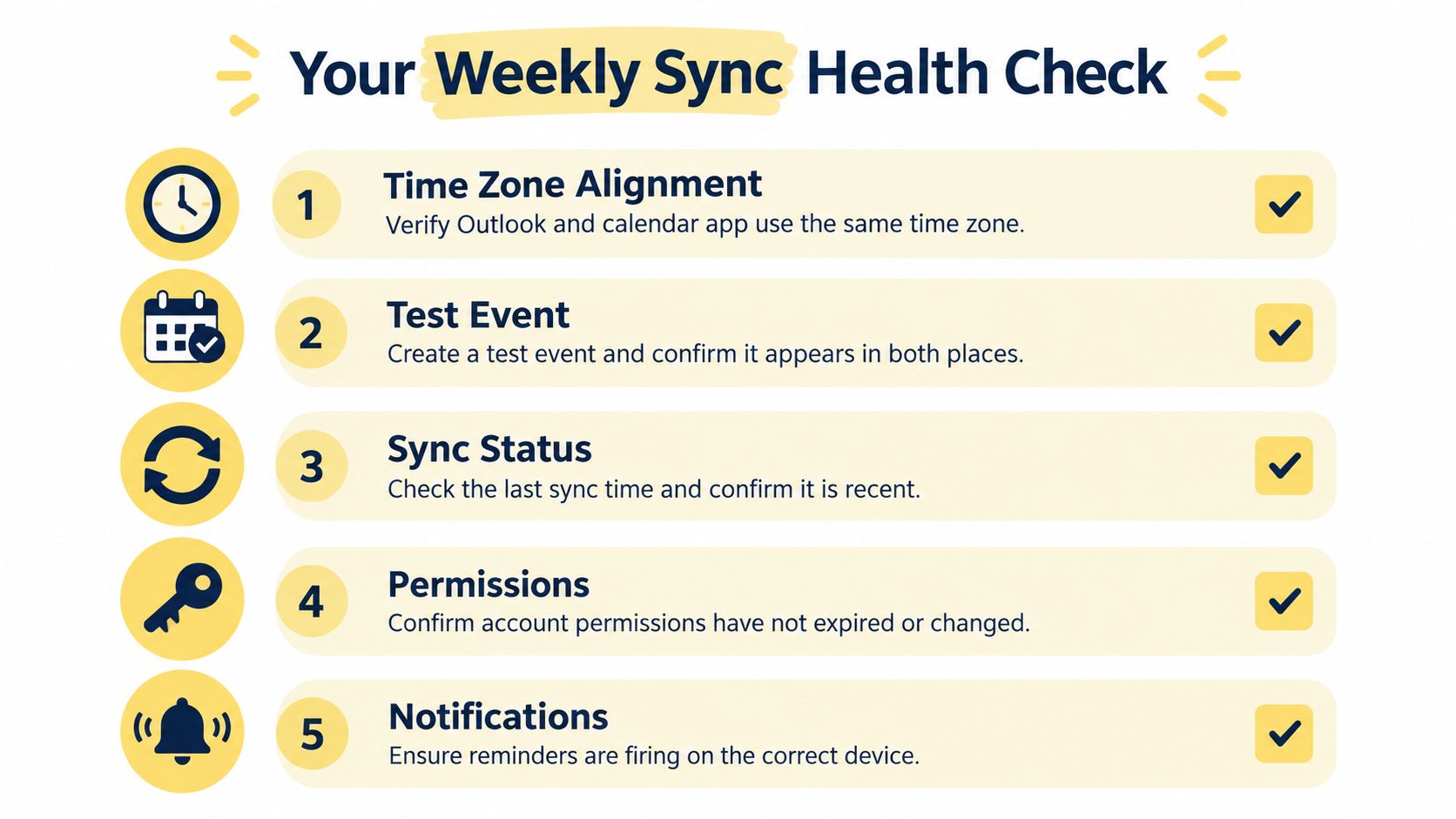
Use the checklist below as your standing template each week.
The Five Minute Monday Routine
- Confirm time zone alignment: Check that your account zone and calendar display zone still agree, especially after travel or a device change.
- Run one live test: Create a test event in your source calendar, edit it, then cancel it, and confirm each step lands where clients book.
- Inspect one recurring series: Move a single occurrence of a test series and confirm it doesn't duplicate or revert.
- Review permissions: Look at who has view, editor, or delegate access and remove anything you no longer recognize or need.
- Check reminders on the right device: Confirm notifications fire where you'll see them before a session.
Keep freshness limits in mind while you test. Microsoft's guidance on Outlook calendar sharing and ICS update timing notes that an Outlook.com recipient using an ICS subscription updates approximately every three hours, while the same subscription in Gmail may take 24 to 48 hours. So if your test involves an ICS feed, don't declare it broken after ten minutes, and don't build same-day booking on it either.
Your deeper decision stays the same every week: one calendar is authoritative, everything else mirrors it. You're not trying to keep two calendars in perfect parallel through force of will. You're protecting one truth and letting other views serve you. Even a clean setup drifts when daylight saving rules change or recurrence patterns get edited casually, so review recurring sessions after seasonal clock changes. Five quiet minutes on Monday beats one loud apology on Thursday, every single time.
If you're ready to stop reconciling Outlook by hand, Coachful connects your Microsoft 365 calendar to your coaching bookings so real commitments block your availability and new sessions land back in Outlook automatically. Set up your calendar connection, name your source of truth, and run your first test event today.