
Apps for Reminders: 10 Tools for Coaching Follow-Ups

Coachful
It's 9:40 on a Tuesday. A client's renewal is due Friday, you promised to send a worksheet after yesterday's call, and the invoice you meant to check is still open in another tab. That's a normal week in a coaching practice, and it produces more open loops than a phone's default alarm can hold.
This roundup covers 10 apps for reminders, from general task managers to alert-focused tools, and it's honest about what each one does well and where it breaks down. It also answers the doubts you're probably already having. "I already have alarms." "Another app means another login." "Won't a task manager just become one more list I ignore?" The answer to that last one depends on whether the reminder is for you or for the client, and that distinction shapes every recommendation below.
A coach's own reminders, session prep, follow-up notes, invoice checks, are a different job from the ones that depend on the client acting. Personal reminder apps handle the first job well. The second is where they stop, and client-facing automation has to take over, so each pick notes where it runs out of road.
Your reminders also compete for attention. Google's research on smartphone app behavior found users had an average of 35 apps installed, and 85% considered mobile notifications useful. A reminder that gets swiped away with the rest has failed.
1. Todoist
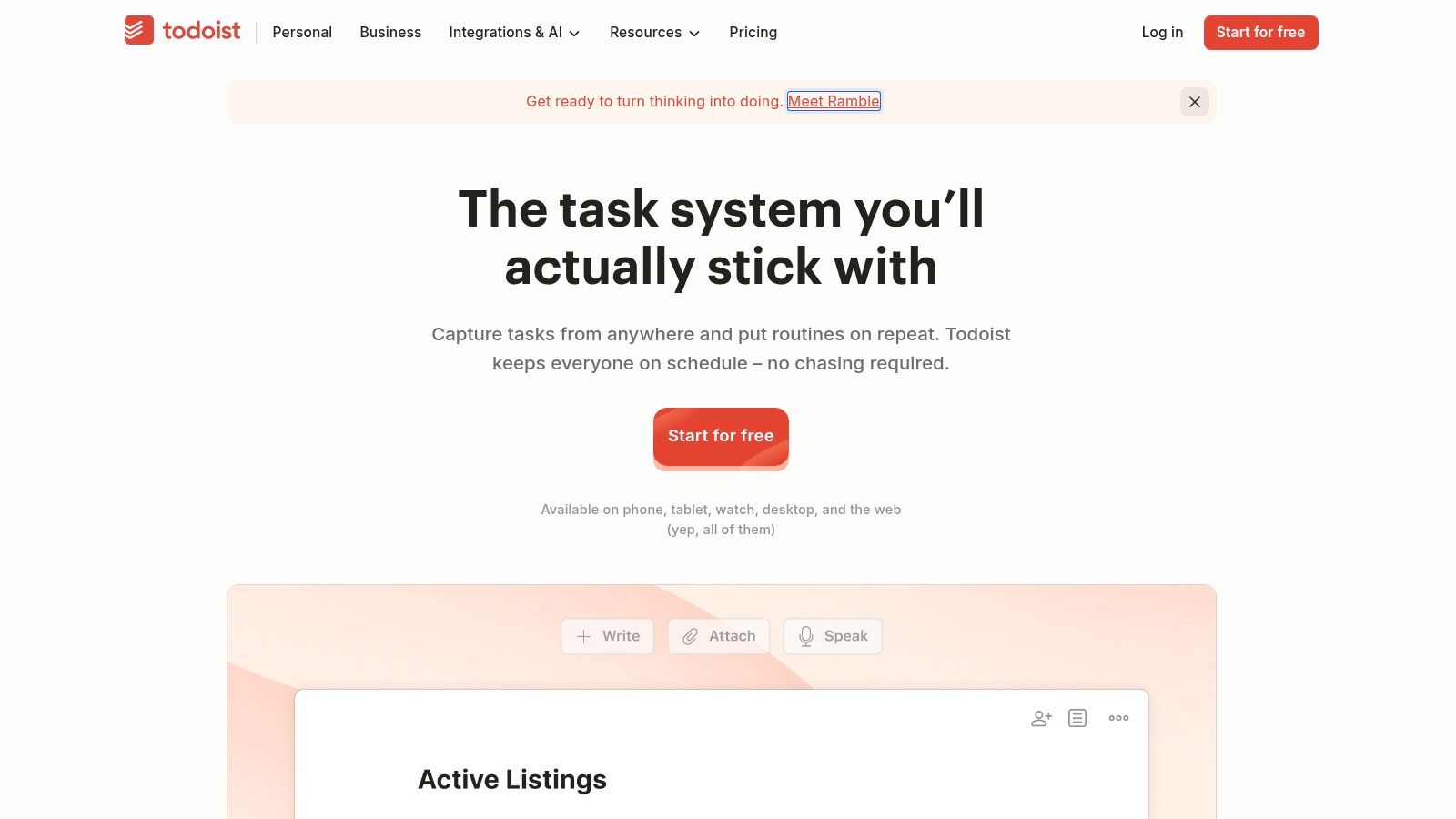
A reminder you can't capture in ten seconds usually stays uncaptured, and that's where most coach task systems fail. In Todoist you type "send Maya the values worksheet tomorrow at 8" in plain language and the app parses the date itself, no tapping through pickers while your next client waits.
Used well, it becomes your coach-only operating list. Set up projects for follow-ups, billing checks, and content, then filter today's session prep away from Friday's renewal chase. Sync runs across mobile, desktop, and web, and shared projects let an associate coach pick up tasks without a chain of forwarded emails.
Check the plan page before you test it, though. Todoist gates reminder alerts behind its paid plans, and that boundary has moved over time. The free tier still covers task capture, due dates, and sync, which is enough to learn whether you'll really keep the list, but the timed pings themselves sit with Pro. If the reminder itself is the feature you're buying, budget for the paid tier from the start.
Timing still beats list size. A prompt to check an invoice lands when you're at your desk Friday morning, not at 9 a.m. on a day you coach back to back. Todoist won't learn those rhythms for you, so set each reminder for the moment the action is actually possible. Know its limit too: nothing here reaches the client. If the reminder's job is to nudge them between sessions, you're already past what this app was built to do.
2. TickTick
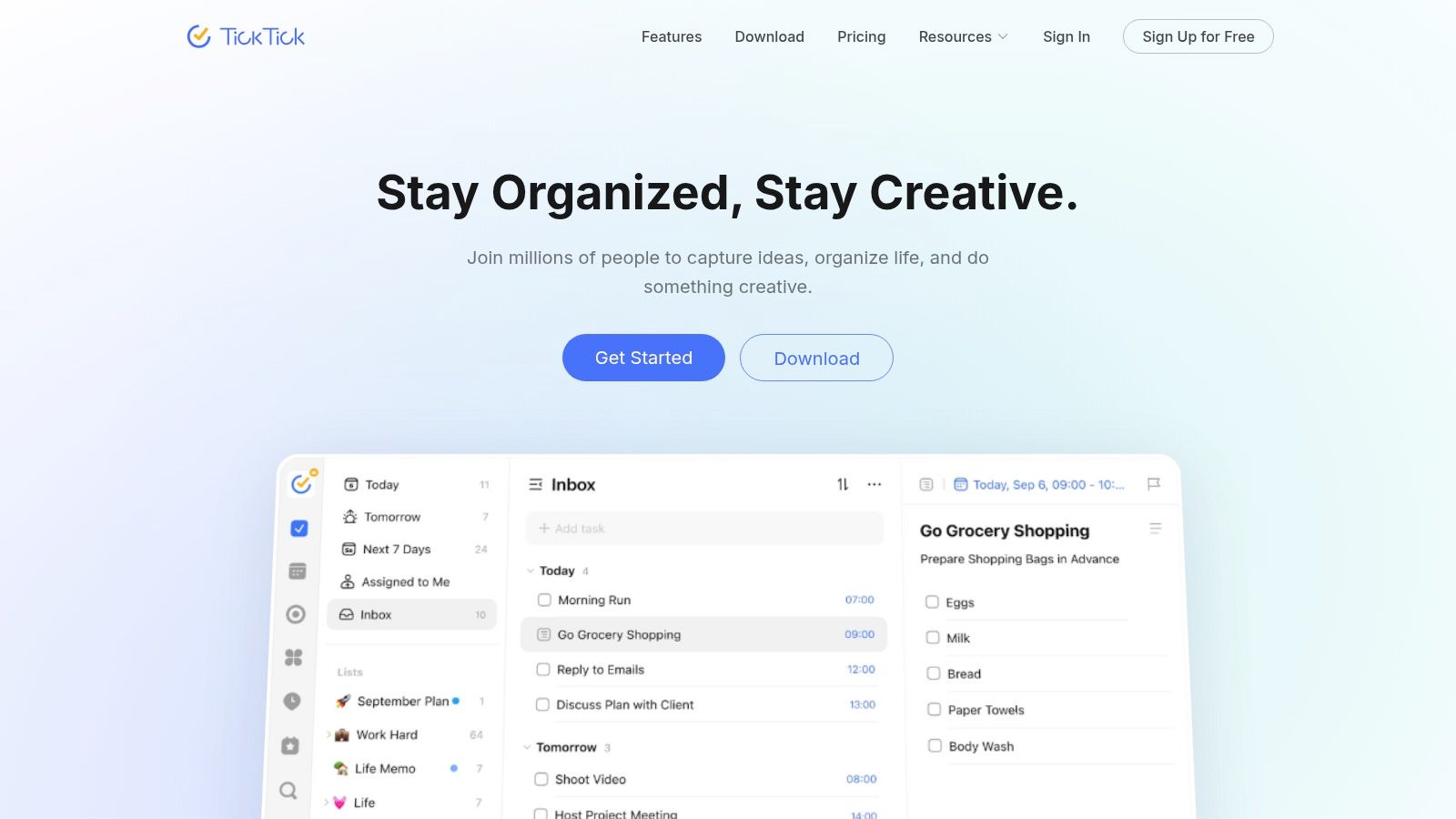
If your inner objection is, "I don't need another list, I need to see my whole day," TickTick is built for you. It combines reminders, calendar views, habit tracking, and a Pomodoro timer in one planner. You can place session prep beside the session itself, then start a focus timer to write notes before the next client arrives.
What stands out for coaches
TickTick offers multiple alerts, recurring reminders, and a persistent Constant Reminder option for tasks you tend to dismiss. On iOS, location reminders can prompt you to prepare an agenda when you arrive at your office. The free tier includes task reminders and cross-platform sync, while Premium expands calendar views and capacity.
That breadth is also the risk. If you only need a nudge to send invoices, the settings can feel busy. Features vary by platform, and location reminders are listed as iOS-only.
There's another limit worth naming plainly. A habit tracker inside your personal app doesn't show whether a client completed their action between sessions. If that gap is frustrating you, read how to track client habits without TickTick before building your whole accountability system here.
Use TickTick for planning your own workday. Don't mistake your completed checklist for evidence that the client did their part.
3. Apple Reminders
"I already have an app for this, don't I?" If you're on iPhone or Mac, you probably do. Apple Reminders is included with supported Apple devices, needs no separate subscription for the core app, and works with Siri and Apple Watch. You can dictate "Remind me to check Jordan's payment when I get home" while walking out of a session.
Apple documents reminders tied to a date, time, location, or messaging a specific person, so a prompt can appear in context instead of at an arbitrary hour. A location reminder at the gym could nudge a client to review a goal, if it's on their device. A messaging reminder could prompt you to ask about a missed assignment while you're already texting that client.
Where it fits and where it stops
Lists, tags, and Smart Lists keep personal tasks, session prep, and shared household items separate. Shared lists through iCloud help with an assistant, but cross-platform use is less smooth outside Apple's ecosystem.
Your client doesn't get a reliable session reminder just because you set one for yourself. For that client-facing step, see how to automate client session reminders. Apple Reminders handles your memory well. It doesn't manage the client's inbox, attendance, or renewal.
4. Microsoft To Do
Coaches who live in Outlook don't need a clever new system. They need flagged email to stop disappearing. Microsoft To Do connects with Outlook tasks and flagged email, so a message saying "Can you send the contract?" can become a dated task instead of an unread thread you swear you'll return to.
The My Day view suits a simple morning routine. Pull in three follow-ups, one invoice check, and notes from yesterday's final session. Set due dates and reminders, then sync across devices. It's free for personal Microsoft accounts, although work or school access depends on your organization's license and settings.
Don't expect complex project planning. To Do is deliberately straightforward, and that's a strength if previous apps became elaborate avoidance systems.
A reminder by itself doesn't guarantee action. Your workflow still needs a clear next step attached to the alert.
Make the alert carry the action. A flagged email that becomes "Send contract and confirm receipt by Friday" gives you the next move, the client-facing output, and the check that closes the loop. "Client stuff" only tells you to feel behind.
5. Google Tasks
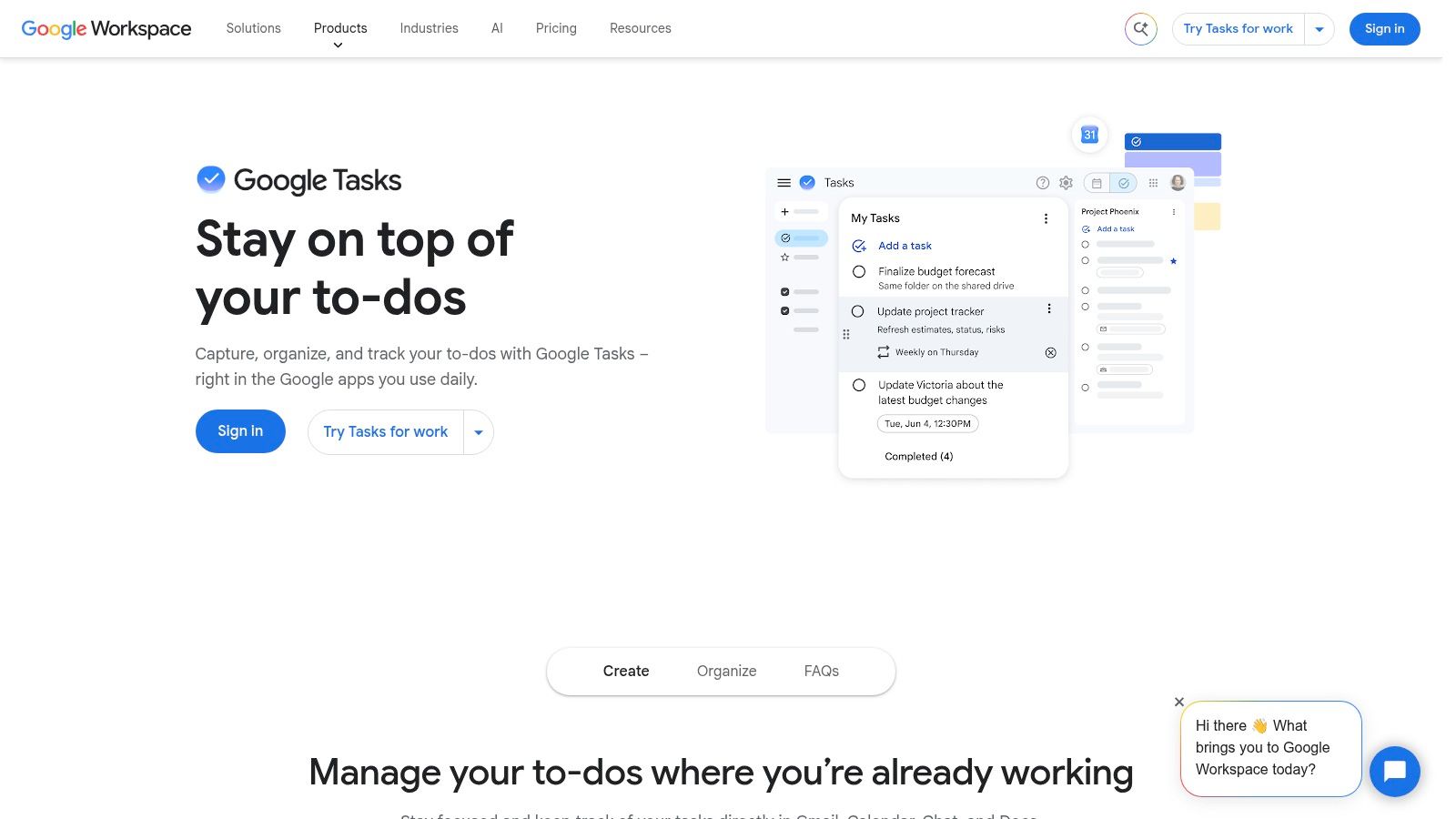
Your thought here might be, "Why did my task show on the calendar but never notify me?" Google Tasks has a specific rule you need to know. Google states you must add both a specific date and a specific time to enable notifications. "Friday" organizes the work. "Friday at 4:00 p.m." activates the alert behavior.
Best use in a coaching practice
Tasks shines for email follow-ups. Create a task from a Gmail message, keep the link to the original email, add subtasks, and set a repeating schedule. Example: a prospect asks for program details, you create "Reply with intake link" for tomorrow at 10 a.m., and the email stays attached for context.
- Strength: Free with a Google account and visible in Google Calendar.
- Limit: Sharing and project management are minimal for team workflows.
- Watch out: Organization features can depend on Google Workspace settings.
Also audit old workflows. Google's transition from Reminders to Tasks says location information moves into task details, but users no longer receive a notification based on location. If you relied on "when I arrive at the office," replace it with an explicit time.
6. Any.do
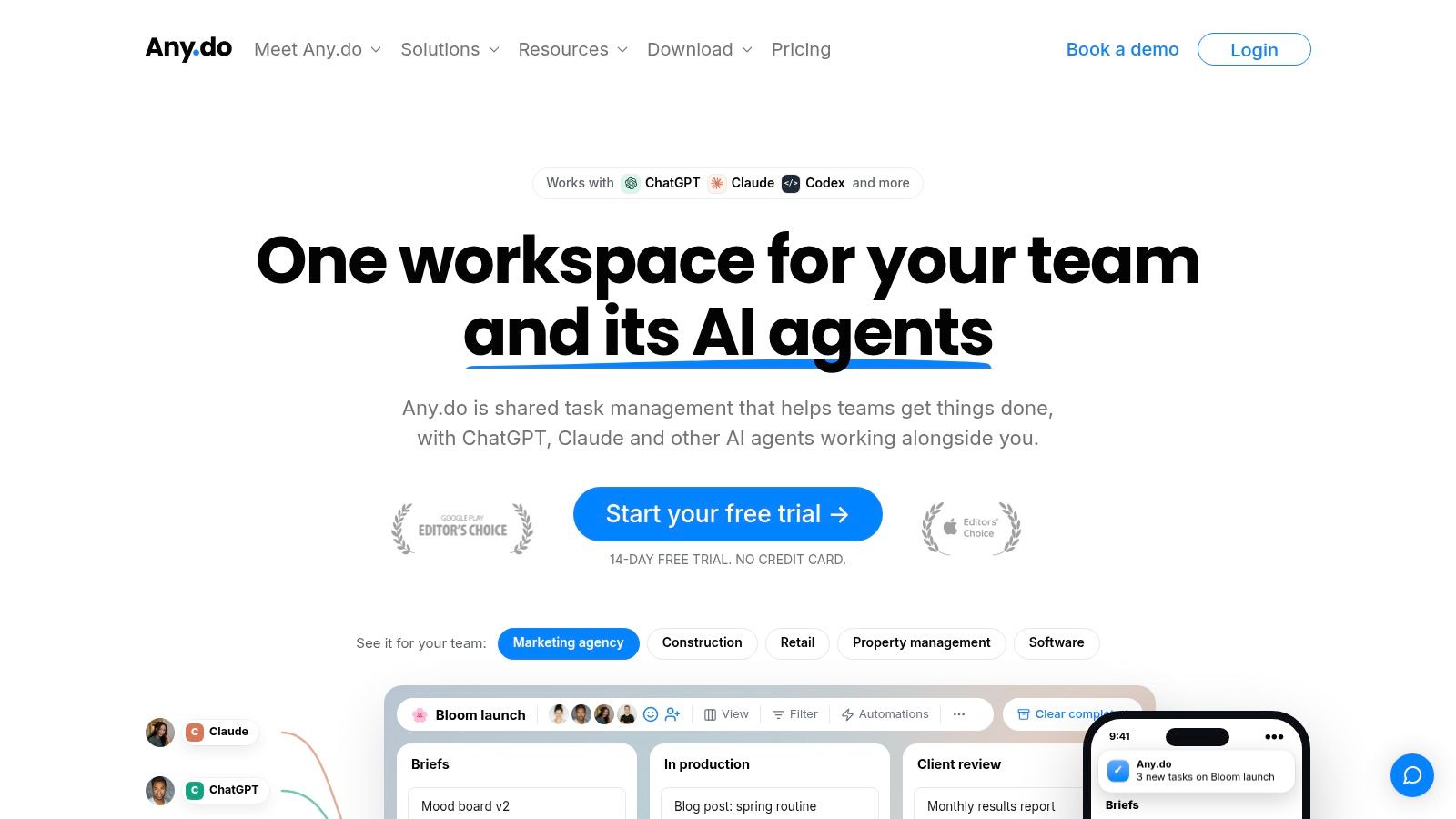
Any.do suits the coach who opens a task app, feels overwhelmed, and closes it. Its daily planning approach pushes you to decide what happens today rather than admire a long list. That helps with the common objection, "I collect tasks, I don't complete them."
The free personal plan covers lists and one-time reminders, with basic recurring reminders. Paid plans add location-based and advanced recurring reminders, plus family or team workspaces. It runs on web, desktop, mobile, and smartwatches.
Use it personally for a morning reset. Review today's sessions, pick the worksheet you owe, the renewal you need to check, and the note you must finish. Don't move every client commitment into a shared personal workspace and call that client management.
One rule keeps the app useful: cap your alerts at commitments where missing the window costs you something. Give high-priority items a repeat prompt and let low-stakes tasks wait in the background. If your session-prep reminder fires with the same urgency as "reorganize my notes someday," you'll start ignoring both. Accountability shouldn't feel like punishment by notification.
7. Due
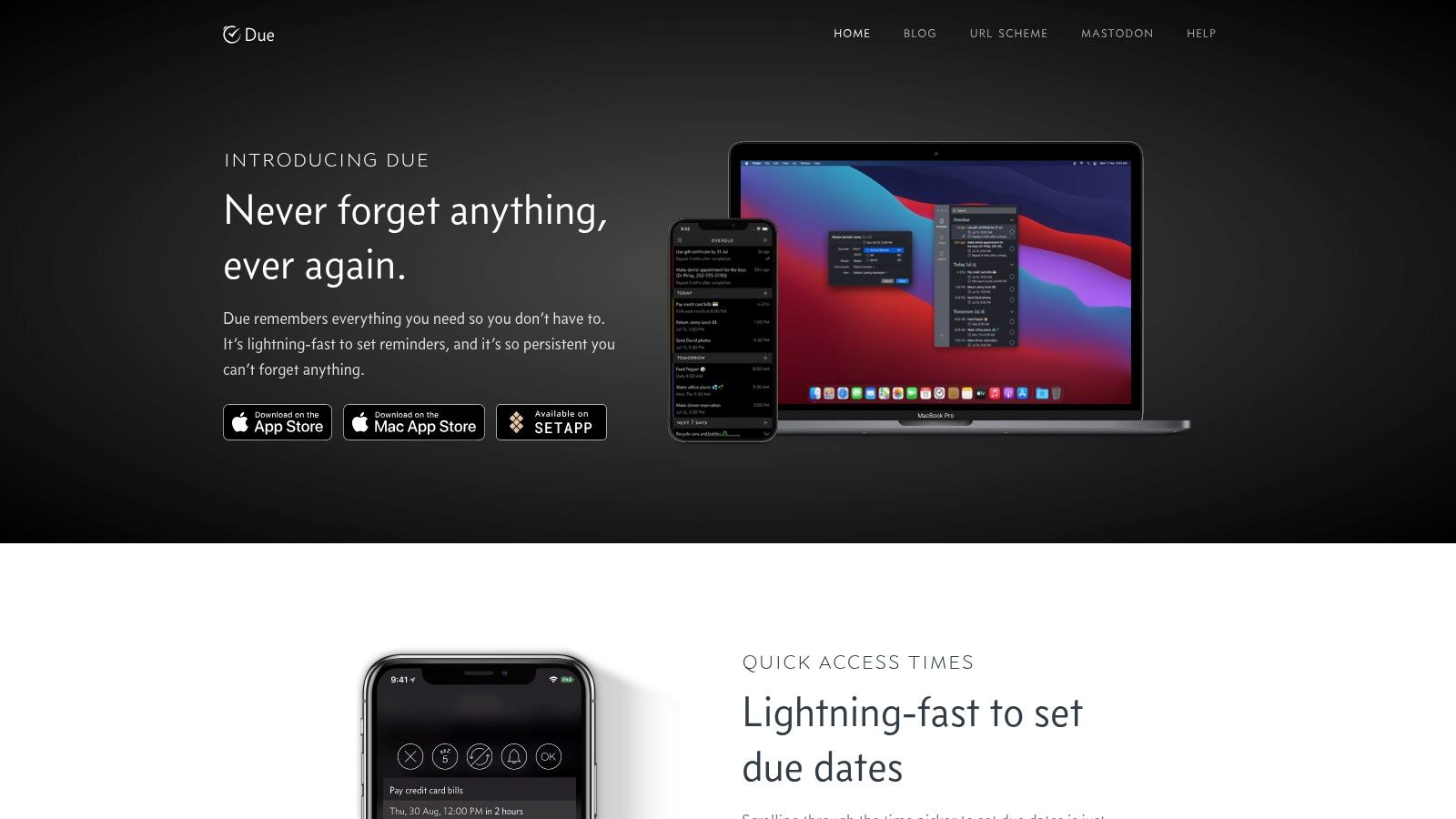
Some coaches don't need projects, tags, or boards. They need an alert that refuses to be swiped away and forgotten. Due is that narrow tool. Its auto-snooze repeats an unanswered notification at an interval you choose until you complete or reschedule it.
That persistence fits short, time-sensitive actions. "Call the venue before 3 p.m." "Send the Zoom link if Priya hasn't replied." "Check whether payment cleared before tomorrow's session." Quick entry and natural date parsing keep setup fast, and Apple Watch support helps when your phone isn't in your hand.
The honest trade-off
Due is Apple-focused, paid, and listed with in-app purchases. It won't replace a full task manager, and it shouldn't hold your entire practice. Reserve it for reminders where missing the window has a real cost.
The case for persistent reminders comes partly from outside coaching. A prospective study of 400 chronic-medication patients in South Africa found 87% adherence among people who used built-in phone reminders, versus 67% among non-users. That study says nothing directly about coaching admin work, so treat it as an example of reminders shifting a repeated habit rather than proof for your inbox. What transfers is the setup: each Due alert carries one defined action with a deadline, and it keeps coming back until you deal with it.
8. Google Keep
You finish a session with three useful phrases the client said, one resource to send, and a question for next week. A task title won't hold that context. Google Keep lets you attach a reminder to the note itself, so the alert brings the thinking with it.
Keep works for quick notes, checklists, and shared lists. A practical example is a note titled "Alex, session themes" with the worksheet link, the exact phrase to revisit, and a reminder for the morning of the next call. You're not reconstructing context from memory ten minutes before you meet.
The notification catch
Keep no longer sends reminder notifications itself. Its reminders are managed through Google Tasks and Calendar, so you need one of those on your device to receive the alert. If you skip that setup, you'll blame Keep for silence that came from a missing permission or missing app.
Keep is also less structured than a dedicated task manager. Recurring billing checks, client stages, and complex follow-up sequences will outgrow sticky notes quickly.
Use Keep as a capture layer, not your practice system. Notes preserve context well. They don't confirm that a client received a session reminder, completed homework, or saw a renewal notice.
9. Remember The Milk
Remember The Milk is the old reliable for coaches who want one task list to follow them across web, desktop, and phone without moving their whole practice into a new app. Lists, tags, dates, and reminders through channels such as mobile notifications and email cover the basics: prep the room, write the follow-up note, check the invoice, send the resource you promised.
Pick the channel before you pick the tool. If you ignore banners during sessions, an email alert at admin time is more useful than a louder push notification. If a client only reads texts or misses app permissions, your perfect reminder still fails.
Be strict about the Free/Pro line. The safe rule is narrow: free accounts cover basic task reminders, and anything beyond that needs to be checked against Remember The Milk's current plan page before you build a client workflow around it. Plan boundaries can change, and the wrong assumption becomes a client problem.
A 2025 reminder-usability paper is best read as a caution: people have to grant permissions, keep devices reachable, and understand what an alert is asking them to do.
Setup rule: Test the notification on the actual device, with sound and permissions on, before you rely on it for a session or deadline.
Remember The Milk is strong for your own recurring admin. Client accountability is the boundary: it won't prove a client opened a worksheet, confirm attendance intent, or adapt a reminder to weak vision, limited dexterity, or low data access.
10. Structured
If lists make your brain shut down, a timeline may work better. Structured places tasks in a visual daily sequence, so you can see session prep at 9:15, a client call at 10, notes at 11, and invoice checks after lunch. You're answering "When will I really do this?" instead of collecting another undated promise.
Calendar imports, widgets, notifications, and optional prompts for morning planning or overdue tasks support that rhythm. A free version is available, while recurring tasks and custom notifications sit behind Pro. Feature depth also differs across iOS, Android, and web, which matters more than it sounds on a coaching day spent between devices.
Here's the catch. A polished timeline tells you what you planned, and nothing about what the client did. It won't confirm a worksheet was opened or flag that a follow-up needs a human touch. That layer calls for client-facing automation, where reminders go out under your name and completion reports back to you.
Before you rely on Structured for anything tied to a client deadline, open it on the device you'll carry day to day and confirm that recurring reminders and notifications work there. A feature present on iOS can run thinner on the web, and a missed alert on a follow-up deadline costs your credibility, not the app's.
How the 10 reminder apps compare on free access, platform reach, and best-fit use
| Item | Free option | Platform focus | Best for |
|---|---|---|---|
| Todoist | Free plan includes task reminders | Mobile, desktop, and web | Personal tasks and team projects |
| TickTick | Free tier includes reminders and sync | Cross-platform; location reminders on iOS | Detailed daily planning and habit tracking |
| Apple Reminders | Included with supported Apple devices | Apple ecosystem | Everyday tasks and shared lists |
| Microsoft To Do | Free for personal Microsoft accounts | Microsoft and Outlook workflows | Daily tasks and recurring work |
| Google Tasks | Free with a Google account | Gmail and Google Calendar | Email follow-ups and calendar-linked tasks |
| Any.do | Free plan includes core lists and basic reminders | Web, desktop, mobile, and smartwatches | Personal planning and shared tasks |
| Due | No free option; paid app with in-app purchases | iPhone, iPad, and Apple Watch | Persistent alerts for time-sensitive follow-ups |
| Google Keep | Free with a Google account | Google services | Notes and lists with connected reminders |
| Remember The Milk | Free accounts available | Web, desktop, and mobile | Task lists with multiple alert options |
| Structured | Free version available | iOS, Android, and web | Visual daily timeline planning |
Pick the Reminder Layer Your Practice Actually Needs
Start by sorting your reminders into two groups. The first group is only for you: session prep, follow-up notes, invoice checks, content deadlines, and the worksheet you promised to send. The second group depends on the client: session confirmations, homework deadlines, habit check-ins, payment prompts, and renewal notices. Mixing those groups is why many coaches feel busy but still miss things. A personal app can remind you perfectly while the client never sees anything.
For the first group, pick based on the ecosystem you already use. Choose Apple Reminders if you're fully on Apple devices and want no separate subscription. Choose Microsoft To Do if Outlook runs your inbox. Choose Google Tasks if Gmail follow-ups are your main leak. Choose Todoist or TickTick if you need projects, filters, recurring patterns, and a system that can grow with an assistant. Choose Due only for the few alerts that must keep returning. Choose Structured if a visual timeline helps you act.
Don't buy features to solve a behavior problem. If you're thinking, "I'll ignore this list like the last one," the issue is probably timing, wording, or volume, not the logo on the app. Write reminders as completed actions, attach them to a real moment, and keep the daily count low enough that each alert still means something. "Send renewal options to Sam and confirm he's seen them" will outperform "Sam renewal" every time. You can also set recurring reminders with an end date so a six-week program doesn't keep prompting you after it finishes.
For the second group, be stricter. Ask whether the client receives the prompt without you manually sending it, whether they can confirm completion easily, and whether you can see what happened after the alert. Delivery isn't the outcome. Attendance, completed assignments, recorded progress, and renewed agreements are the outcomes. A reminder that creates a check-in is useful. A reminder that only creates another dismissed banner is decoration.
That's where a coaching platform with built-in reminder and renewal automation, such as Coachful, earns its place. It handles the client-facing layer that personal apps weren't designed to own, while your chosen task app handles your private admin. You don't need to replace a simple personal tool that's working. You do need to stop asking it to manage client behavior it can't see.
Pick one personal app from this list and use it for two weeks. Track how many reminders you act on, how many you snooze repeatedly, and how many involved a client action you couldn't verify. Those answers will tell you more than any feature table. They'll also show you exactly where your practice needs automation, and where a well-timed nudge for yourself is enough.
If your client-facing reminders still depend on you remembering to send them, Coachful can bring session scheduling, reminder and renewal automation, messaging, payments, and progress tracking into one workspace. Set up the prompts your clients need to receive, keep your personal task app for your own admin, and spend less time chasing open loops between sessions.


