Coaching Website Navigation: 5 Menus to Adapt

Nour
Founder, Coachful
Your coaching website menu should help a prospective client answer three questions: what can I get help with, can I trust this coach, and what happens next? Start with a small set of descriptive links and one clearly named action. Do not turn the header into an inventory of everything you have ever created.
The awkward moment is familiar. You add a workshop, then a course, then a newsletter, and suddenly “Work with me” opens a dropdown that requires a guided tour. A stranger does not know which offer you consider your flagship. They are trying to find the thing that brought them here.
These five coaching website navigation examples are hypothetical menu structures, not customer sites or tested conversion winners. Choose by your actual offer and buyer, then adapt the labels. This guide concerns the header and the routes beneath it, rather than general homepage design or footer copy.
What belongs in a coaching website menu?
A useful starting point is Coaching, About, Resources and Contact, plus one booking or inquiry button. You may need fewer links. You may need a different set entirely if an HR buyer, rather than an individual client, commissions your work.
Separate three kinds of navigation before choosing a layout:
- Main navigation: the small number of public destinations that help someone evaluate your work.
- Primary action: the next step, such as “Book an introduction,” “View the program” or “Discuss a team brief.”
- Utility navigation: practical routes such as client sign-in, contact details and policies. These need to be findable, but do not all deserve equal emphasis in the header.
There is no magic number of links that guarantees bookings. Begin with roughly four or five choices as a design constraint, not a scientific rule. Add a link only when you can explain which visitor needs it and what decision it helps them make.

1. The solo-practice menu: one service, one obvious next step
Best for: a coach selling one main type of individual engagement, where an introductory conversation is the sensible first step.
Example menu: Career coaching | About | Resources | Contact. Action button: Book an introduction.
The coaching page should explain whom the service suits, what the engagement involves, the relevant scope and how to start. About supplies the background that helps a visitor evaluate you. Resources is optional: remove it if it contains only an abandoned blog or a download unrelated to your current work.
“Career coaching” is more informative than “Your next chapter.” The expressive phrase can work as a headline on the page. In the menu, visitors need to predict the destination before clicking. Nielsen Norman Group’s menu-design guidance recommends clear, familiar labels rather than invented terminology.
Do not label the action “Book a session” if it reserves a sales conversation rather than a coaching appointment. Include the duration and purpose on the destination page. If availability is limited, describe the real inquiry process instead of presenting a calendar that has no usable appointments.
Trade-off: a short menu gives little space to separate specialties. If your services genuinely involve different buyers or delivery models, use the next structure rather than squeezing everything into one vague page.

2. The multi-offer menu: compare formats without learning your brand vocabulary
Best for: a practice with individual coaching, a group program and a self-paced course that serve meaningfully different needs.
Example menu: Coaching options | About | Articles | Contact. Action button: Find your coaching option.
Under Coaching options, use recognizable labels such as Individual coaching, Group program and Self-paced course. A signature name can follow the category on the destination page: “Group coaching: The Next Role Program.” Making visitors decode three proprietary names before they understand the formats adds work without helping them choose.
Create a short comparison page if people often ask which option fits. Explain the audience, format, support, time commitment and next step for each. Do not imply that a self-paced course includes personal coaching unless it actually does.

A dropdown can be useful here, but it should not be the only place a visitor can learn what you sell. Link the parent category to an overview when your site supports that behavior. Make the dropdown work by keyboard and touch, not only when a mouse hovers over it.
Trade-off: an overview adds a step for someone who already knows the exact program. Keep direct links from relevant articles, emails and campaign pages. Your main menu serves the whole practice; a targeted link can serve a specific buyer.
3. The corporate menu: let commissioners and participants take different routes
Best for: executive, leadership or team coaches who sell to organizations while coaching employees or cohorts.
Example menu: For organizations | Services | About | Insights. Action button: Discuss a coaching brief. Utility link: Client sign-in.
The organization page should explain the commissioning process: the kinds of briefs you accept, how you scope an engagement and what the buyer should provide. Avoid promising a fixed package before you understand participant numbers, sponsorship, reporting boundaries and procurement requirements.
A participant returning for a worksheet has a different task from an HR director exploring a team engagement. Put client access where returning users can find it without making it compete visually with new-business inquiries. Do not send both audiences to the same generic “Get started” button.

Keep confidential material behind appropriate authentication. Removing a page from the menu is not access control. A person with a direct URL may still reach an unlisted public page, so do not use “not in navigation” as your privacy strategy.
Trade-off: audience-based navigation is worthwhile only when those audiences genuinely need different information. A one-person consumer practice does not become more credible by adding an empty “For organizations” section.
4. The resource-led menu: help a reader move beyond one useful article
Best for: a coach whose articles, podcast or newsletter are a substantial part of how people discover and evaluate the practice.
Example menu: Coaching | Articles | Podcast | About. Action button: Get the weekly note.
This structure works only if subscribing is genuinely the next step you want most visitors to take. If someone is ready to buy coaching, the service route must remain easy to find. Do not turn the site into a publication that accidentally hides the business.
If you publish several formats inconsistently, group them under Resources rather than maintaining three thin sections. Organize the landing page by the reader’s problem where possible: changing careers, leading a first team or building a sustainable practice. “Latest” alone is not much help to a visitor with an urgent, specific question.

Name the subscription clearly on the destination: topic, format and intended frequency. A visitor who downloads a worksheet should understand whether they are also subscribing to ongoing marketing. Do not silently treat a service inquiry as newsletter consent.
Trade-off: content creates more possible journeys and more maintenance. Keep a specific offer’s landing page focused even when the main website offers a broader resource library.
5. The program-led menu: let the offer explain itself before asking for commitment
Best for: a coach with a genuinely central group program, cohort or structured engagement that needs more explanation than a booking button can provide.
Example menu: The program | How it works | About | Questions. Action button: Apply for the next cohort.
Use “Apply” only when there is a real application and selection process. If the visitor can pay immediately, label the action “View dates and enroll” or a similarly accurate phrase. If no dates are confirmed, use an honest interest-list invitation rather than manufacturing an enrollment deadline.
A one-page program site can use section links for How it works and Questions. Make sure those links actually land beside the relevant headings and do not disappear under a sticky header. A multi-page practice may need a separate program page rather than making every navigation item jump around the homepage.

Trade-off: program-first navigation can make your other services harder to discover. Use it when the program is genuinely the main offer, not simply because you are excited about a launch this month.
How to make the menu work on a phone
Keep the same basic labels across desktop and mobile. It is disorienting when “Coaching options” becomes “Transform” on a phone, or when the primary action disappears inside an unrelated icon.
A compact mobile menu is reasonable when space is limited. On a wide desktop, showing the main links directly usually makes them easier to discover. Do not hide useful navigation purely to make the hero photograph feel more cinematic.

Test the menu with a keyboard, not just a thumb. You should be able to reach the opener, see focus, expand it, follow a link and leave without becoming trapped. A submenu should not require a perfectly steady mouse or close before the visitor can reach its items.
The W3C Web Accessibility Initiative menus tutorial explains why structure, identifiable states, keyboard access and usable targets matter. If your template behaves badly, ask the platform or a qualified developer to fix the actual interaction. Renaming links does not repair an inaccessible menu.
A practical navigation brief you can copy
Write this before changing your site. It is a decision brief, not a requirement to build every listed page.
- Primary visitor: [Who is arriving, and what are they trying to decide?]
- Primary action: [The specific commitment and destination.]
- Main links: [The shortest useful set of descriptive labels.]
- Secondary destinations: [Pages linked from a service overview or relevant article.]
- Returning-client route: [Correct sign-in or support destination, if applicable.]
- Footer routes: [Policies, identity details and other appropriate utility links.]
- Owner: [Who updates the menu when an offer changes?]
For example, a hypothetical career coach could choose: employed professionals considering a transition; a 20-minute introduction; Career coaching, About, Articles and Contact; a quiet Client sign-in link; and policies in the footer. That brief is enough to start. It does not require a mega-menu.
Build and verify the destinations before polishing the header
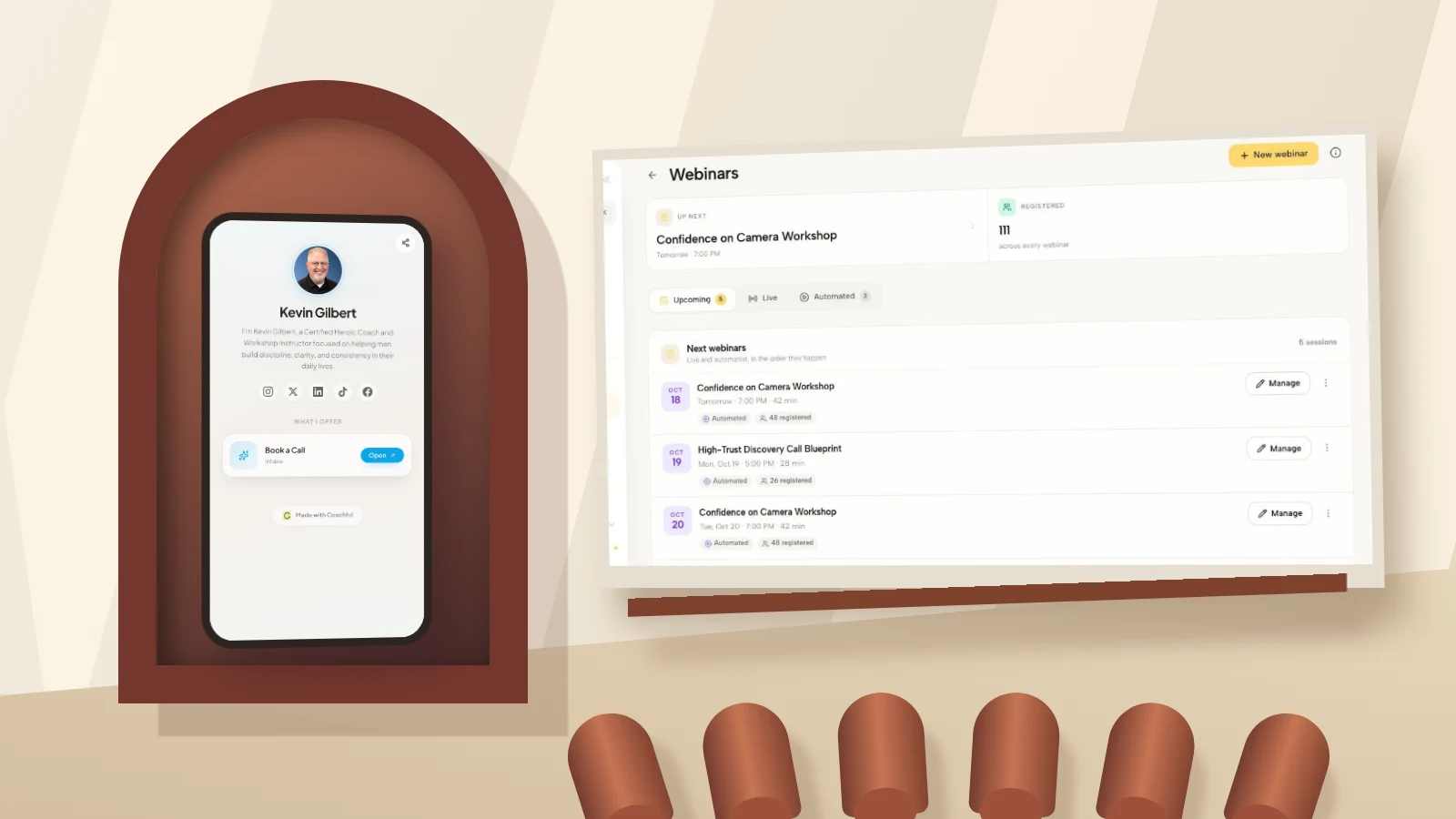
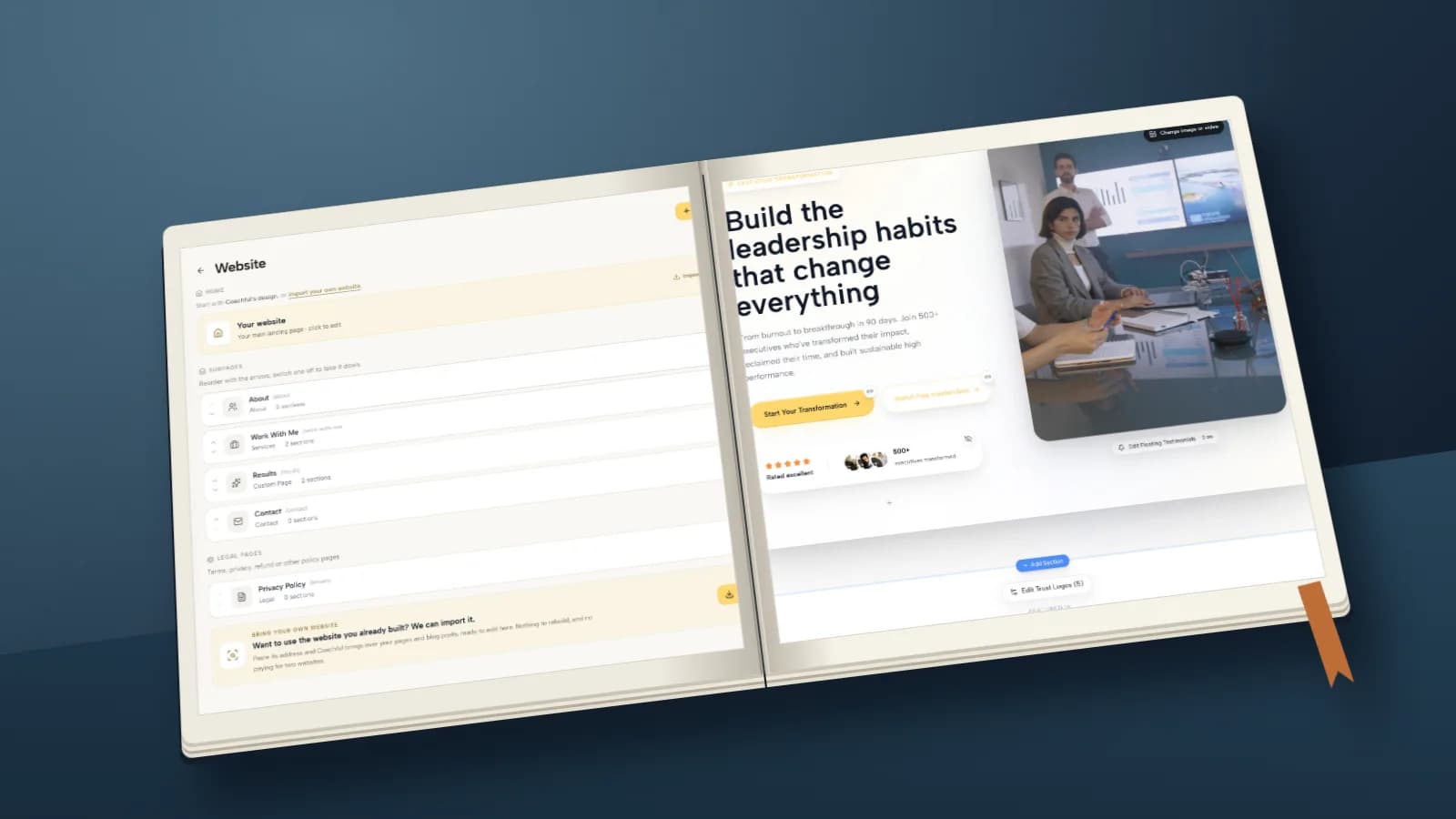
In Coachful, the demo website workspace shows a page inventory, while the live editor shows the content people reach. The offer and public-link workspaces illustrate other possible destinations. Those are useful surfaces for checking your plan, not evidence that any particular menu arrangement increases sales.

Before publishing menu changes, open each destination as a visitor. A label saying Coaching should lead to a service explanation, not a login screen. A booking invitation should reach the intended appointment type. A course link should make clear whether the visitor is viewing sales information or accessing purchased material.
Run a small task test with someone unfamiliar with your site: “Find out whether this coach offers individual work,” “Show me how to inquire about a team,” or “Find the next step for this program.” Watch the first choice and ask what they expected. Hesitation is useful feedback; do not coach them through your own menu.
Then test from an article, not only the homepage. People can enter through any public page. Check the logo’s home link, the current-page indication, mobile opening and closing, and every submenu destination. Record broken routes before changing colors or animation.
Frequently asked questions
Should a coaching website menu include Home?
It can, but it is not compulsory. A clearly identifiable logo or business-name link often provides the home route. If your intended audience struggles to recognize that route, a visible Home link may be useful. Test the actual design rather than deleting it on principle.
Is “Work with me” a good menu label?
It is familiar, but a specific service label can communicate more. “Career coaching” or “Leadership programs” helps visitors predict the destination. Work with me can still suit a personal brand when the page immediately explains the available options.
Should a landing page have the full website menu?
Not necessarily. A focused registration or offer page may use reduced navigation, provided visitors retain appropriate identity, contact and policy routes. Do not use a minimal menu to hide material terms or make it difficult to understand who is selling.
Does a simpler menu improve SEO or guarantee more bookings?
No menu structure guarantees rankings or sales. Clear links can help people and crawlers find relevant pages, but the usefulness of those pages, the offer, traffic quality and the rest of the journey still matter. Treat a redesign as a hypothesis and watch real inquiry quality, not just menu clicks.
The best menu is a set of promises you can keep. Choose the example closest to your practice, name each destination plainly and test the routes before adding another link.
If that exercise exposed disconnected website, offer and booking destinations, inspect the actual tools before rebuilding. Try the interactive Coachful demo to explore the website, offer and public-link surfaces and judge whether they fit the journey you want clients to take.