Webinar Dry Run Checklist for Coaches: 7 Tests Before You Go Live

Coachful
Editorial Team
Can your webinar attendee actually get in, hear you and open the next-step link, or have you only checked that everything looks fine on your laptop? A useful webinar dry run tests the audience journey with a separate attendee device, then rehearses the transitions that are hardest to fix while you are teaching.
For coaches, the priority is not a broadcast that looks expensive. It is protecting a participant's time, privacy and ability to use the session. Test registration, joining, sound, shared material, participation, the coaching invitation and your fallback plan. Record failures and retest them before calling the rehearsal complete.
This checklist is for a coach hosting a live educational webinar, with or without an invitation to a paid program. It is not a full launch plan. For pages, promotion and follow-up, use our webinar funnel guide. Here, the question is narrower: does the event work from the attendee's side?
What is a webinar dry run?
A webinar dry run is a private rehearsal of the event's technical and delivery handoffs. You use the intended equipment, presentation and participant route, but work with authorized testers rather than your public audience. A presentation rehearsal checks what you say. A technical dry run also checks whether someone else can receive it.
Webinar providers describe this as a practical production step. Zuddl's dry-run checklist covers speaker access, sound, recording, presentation timing and contingency planning. MeetingOne's rehearsal agenda separates revising materials from a full run-through. The process below adapts those operational concerns to a coach's smaller event; it is not a validated formula for attendance or sales.
Schedule the first rehearsal early enough to fix a broken link or replace an unreadable worksheet. Repeat a short preflight on event day, especially after a software update, room change or equipment change. There is no universal rehearsal length that makes a webinar safe to run.

Before you begin: create a safe test setup
Have your final joining route, slides, worksheet, next-step destination and fallback message available. Use the microphone, headphones, computer and internet connection you intend to use live. A successful call from your phone does not test the laptop you will present from.
Ask a colleague or another authorized tester to join as an attendee. If you are alone, a second device can reveal access and sound problems, but it cannot give the same feedback as another person. Mute its microphone and use headphones to avoid creating an echo loop.
Keep the rehearsal separate from the public event where your platform allows it. Label test records clearly and use addresses you control. Do not send test reminders to registrants, publish a rehearsal recording to your community or take a real payment just to see whether a button works. Use a supported test environment for payment testing.

1. Test registration and the confirmation journey
Start from the public link an attendee will actually click, not an editor preview or a shortcut available only to your account. Open it in a fresh browser session. Register with your authorized test identity and follow every instruction exactly as a first-time visitor would.
Check the event name, date, time zone and format on the registration page, confirmation screen and email. If you offer a calendar invitation, open it and compare the saved time and joining destination. A familiar event title can conceal an old date or a copied link from last month's session.
Pass evidence: the tester can explain when the session happens, how to join and what to bring without asking you. Save the relevant test observation, not unnecessary personal information. If the route works only when you explain it aloud, the instructions need another edit.
Check any promised accessibility information and preparation material too. If you ask participants to print a workbook, tell them whether a digital alternative is available. If joining requires an account or software installation, discover that now and make the requirement clear before event day.

2. Join as an attendee, not as the owner
Owner access is not attendee access. Follow the confirmation link on the tester's device and observe login prompts, waiting-room behavior and any admission step. Confirm who can admit people while you are speaking. If you have a moderator, rehearse that person's actual permissions rather than assuming their role name grants them access.
Try the route on a phone if your audience is likely to attend on mobile. Check whether the join button is visible and whether the browser opens the correct app or page. You do not need to certify every possible device, but you should test the main route you advertise and state known limitations honestly.
Inspect connected services if an external calendar or video provider is involved. Then test the handoff. An account showing as connected does not prove that a particular event has the right link, that its host is available or that the tester has permission to enter.

Pass evidence: an authorized attendee reaches the intended session without staff privileges, and the host can manage entry using the setup planned for the event. Treat an unexplained login wall or a link to a different session as a blocker, not a small cosmetic issue.
3. Listen to the transmitted sound
Ask the tester to describe what they hear while you speak at your normal teaching volume. Confirm the selected microphone in the live room, not only in your computer's system settings. Disconnecting headphones or docking a laptop can change the active input.
Read a short passage, pause and move as you normally would while presenting. Ask about distortion, dropouts, background noise and volume changes. If the event uses a video clip, play a short authorized excerpt and verify that the attendee hears its audio. Hearing it through your own speakers proves nothing about transmission.
If you intend to record, make a brief rehearsal recording with the tester's knowledge. Play it back on another device. Check that sound, slides and any promised captions appear as expected, then handle the test file according to your retention arrangements. Recording availability and caption behavior depend on the tools and settings you actually use.
Pass evidence: the tester can understand ordinary speech and any essential shared audio without constant adjustment. Keep a tested alternative, such as a different microphone, available if practical. Do not promise a smooth recovery until you know how to switch inputs in the room.
4. Share the material and rehearse one participant action
Share the exact window or screen you plan to use. Ask the tester to read the smallest important sentence from the slide or worksheet. A slide can look beautiful on your monitor and become unusable on a phone. Increase type size, simplify the layout or provide an accessible companion document where needed.
Close private tabs and disable visible notifications. Use fictional or properly authorized examples. A coaching webinar does not need real client notes, employer names or private messages to make an exercise convincing. Check what appears when you switch windows, not just what appears on the first slide.
Rehearse one audience action: finding the chat, answering a prompt, opening a worksheet or asking a question. Give the instruction as you intend to give it live, then wait while the tester follows it. If the action needs several extra explanations, shorten it or show the destination more clearly.
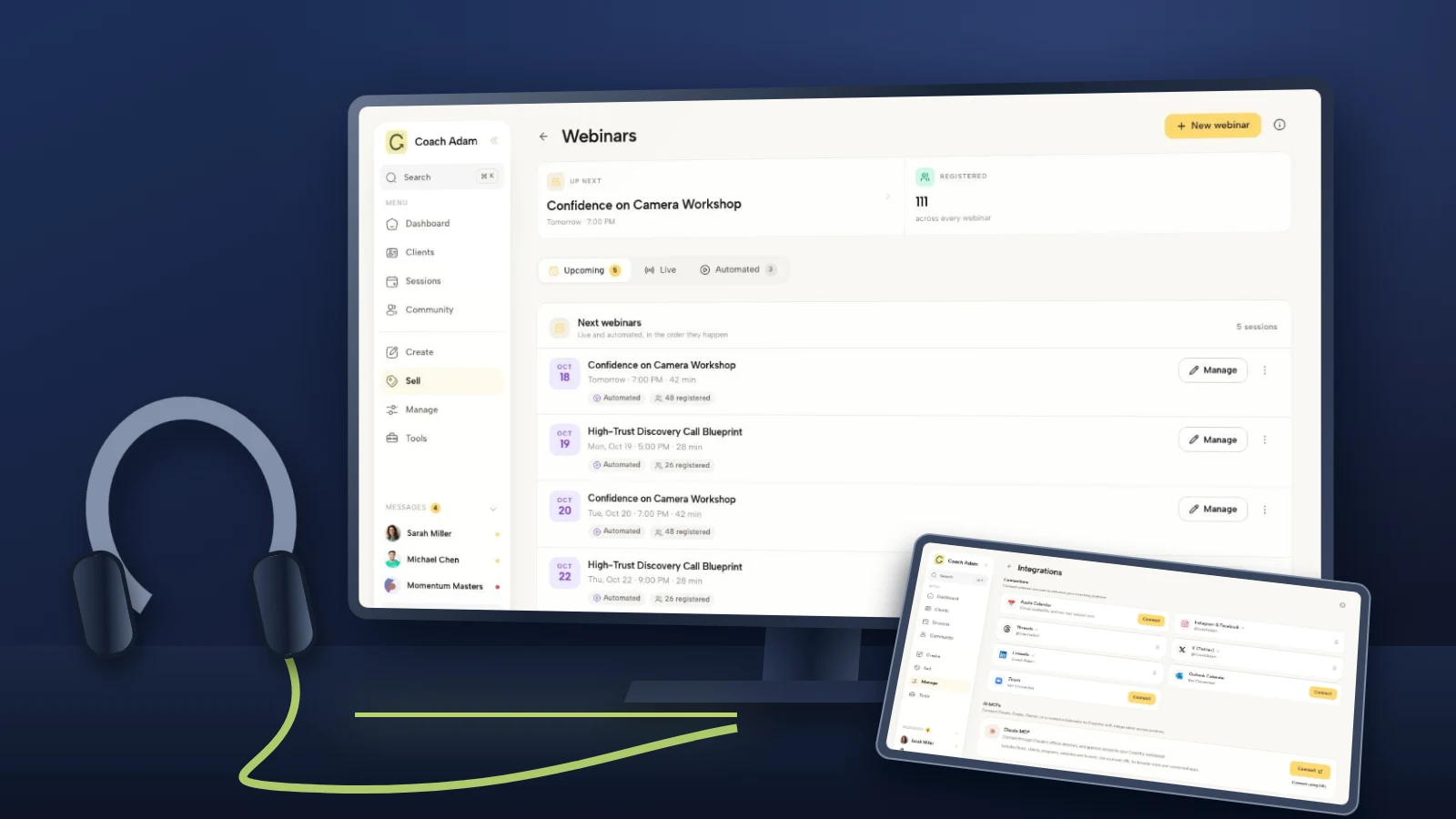
For a demonstration across several pages, map the handoffs before testing them. The Coachful funnel screenshot below is useful for seeing connected steps, not for proving those steps work. Click through the actual published route separately.

Pass evidence: the attendee can read the necessary material and complete the intended participation step. If you cannot support an essential exercise on the devices you expect, adapt the exercise or explain the requirement before people commit to attending.
5. Open the real next-step link and check the offer
If your webinar ends with an invitation to coaching, rehearse the whole transition. Say who the next step is for, paste the link where participants will receive it and ask the tester to open it. A correct link on a slide does not prove that the link copied into chat is correct.
Check the destination's title, scope, availability and price against what you will say. For an application, verify that the form can be reached and that its questions match the offer. For a booking, inspect the available dates and time zone. For checkout, inspect the terms and use the provider's supported testing method without charging a real participant.

Remove claims about deadlines, limited places, savings or included support unless they are true and consistent across the event and destination. Do not improvise a bonus during the rehearsal and forget to update the actual terms. A coaching relationship starts with expectations, not just a successful transaction.
Pass evidence: the tester reaches the intended next step and can accurately describe what happens after clicking. If the next step is broken, decide whether to repair it, replace it with an honest alternative or remove the invitation. Repeating a broken link more enthusiastically is not a backup plan.
6. Check reminders and prepare a fallback message
Review a test confirmation or reminder in an inbox you control. Check the sender name, reply destination, event time and joining link on desktop and mobile. A builder preview cannot establish inbox delivery, and one successful test does not guarantee delivery to every registrant.
Use your platform's preview or test function, or a separate authorized test setup. Do not change a real audience, schedule a public broadcast or trigger a live automation while checking the wording. If you cannot isolate a safe test, review the configuration without sending and record that delivery remains unverified.

Prepare a short fallback message before the event. For example: “We are resolving a connection issue. Please stay on this page while we check access. We will post the next update here at [specific time]. If we need to move or reschedule, we will use [agreed communication route].” Replace every placeholder before using it.
Assign the person who can post that message and identify where they can reach attendees if your main device fails. A second host is useful only if that person can actually enter, communicate and manage the room. If you host alone, make your fallback simpler rather than pretending you have a production team.
Pass evidence: the message and contact route are ready, and the responsible person can use them. Test a backup connection if you plan to rely on it. A hotspot you have never tried in that room is an idea, not a verified fallback.
7. Run the difficult transitions, then close the issue log
Rehearse the opening, first screen share, participant instruction, return from an exercise, offer invitation and ending. These transitions ask you to speak, click and monitor people at the same time. Run them in sequence without stopping for minor wording edits, then review the evidence afterward.
Time the run against your advertised length. If questions will be included, leave room for them instead of filling every minute with slides. Do not speed through an unreadable exercise to preserve an overfull presentation. Remove material that does not serve the promise of this particular webinar.
Keep a short issue log with the test, observation, owner, fix and retest result. “The link is fixed” is weaker than “The tester opened the replacement link from the reminder on a phone and reached the correct room.” The second statement tells you what was actually checked.

Pass evidence: essential access, sound, participation and next-step failures have been resolved and retested, or the affected part has been removed with an honest change to the plan. Cosmetic preferences can wait. An inaccessible room or inaudible presentation cannot.
A copyable webinar dry run checklist
Use these lines in your own rehearsal note. Add the tester, device, test time and evidence beside each item. An unchecked box is more useful than a fictional pass.
- Registration: the public route opens; the event details match; the authorized test registration reaches the correct confirmation.
- Joining: a non-staff attendee can enter; admission and host responsibilities are understood; the advertised mobile route has been checked.
- Sound: normal speech and essential shared audio are understandable from the attendee side.
- Material: slides are readable; the correct window is shared; private information stays hidden; the participation action works.
- Next step: the actual chat or slide link opens the correct offer, application or booking, with accurate terms.
- Communication: authorized test messages have been checked where possible; unverified delivery is recorded; the fallback message and owner are ready.
- Retest: each blocker has an owner and a demonstrated resolution; essential event-day checks are assigned.
Example: a career coach rehearses a live class
This is a hypothetical example, not a client result. A career coach plans a class on explaining a career change. A colleague joins from a phone through a test confirmation. They reach the correct room, but cannot read the sample answer on the shared slide.
The coach shortens the slide and offers the example in an accessible document. The colleague opens it and reads back the key sentence. During the invitation, the colleague discovers that the chat link opens an older package. The coach replaces the link and repeats the click from the attendee device.
The run ends with two verified fixes, not a claim that the webinar will convert or that nobody will have access trouble. That is the value of the dry run: finding specific avoidable failures while there is still time to make a different choice.
Common questions about webinar rehearsals
Can I do a webinar dry run by myself?
You can test many handoffs with a separate authorized attendee device, but another person gives better evidence about instructions and sound. If working alone, record what you could not independently assess. Do not use the host preview as a substitute for joining as an attendee.
Should I rehearse in the real webinar room?
Use the real configuration when it can be tested privately without notifying or admitting the public. Otherwise use a separate rehearsal event, then verify the actual event's settings and links carefully. Avoid switching live status, changing registrations or sending messages simply to simulate a rehearsal.
Do I need to record the whole rehearsal?
No. A brief agreed recording may answer an audio or sharing question. A full recording is optional and creates another file to protect and manage. Do not capture real client information or publish a tester's image or comments without an appropriate separate basis.
When should I postpone rather than go live?
Postpone or change the format when an unresolved failure prevents you from delivering the essential promise safely and accessibly. Examples include attendees being unable to enter, unusable sound or exposure of private information. Communicate the revised plan and apply your actual terms fairly.
Test the experience you are asking people to trust
You do not need a television studio to run a useful coaching webinar. You need evidence that a participant can follow the route you have promised, and a realistic response when something fails.
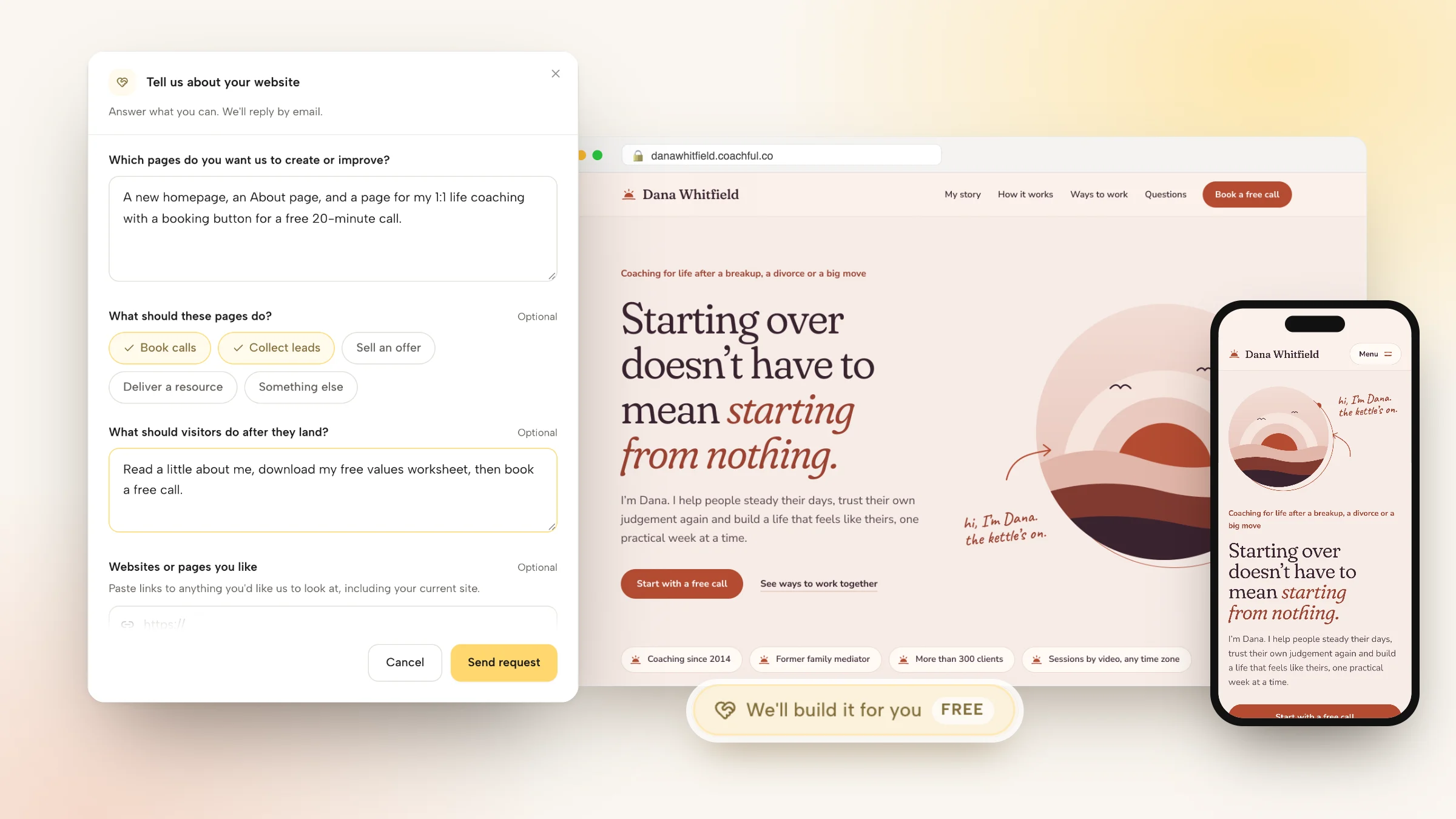
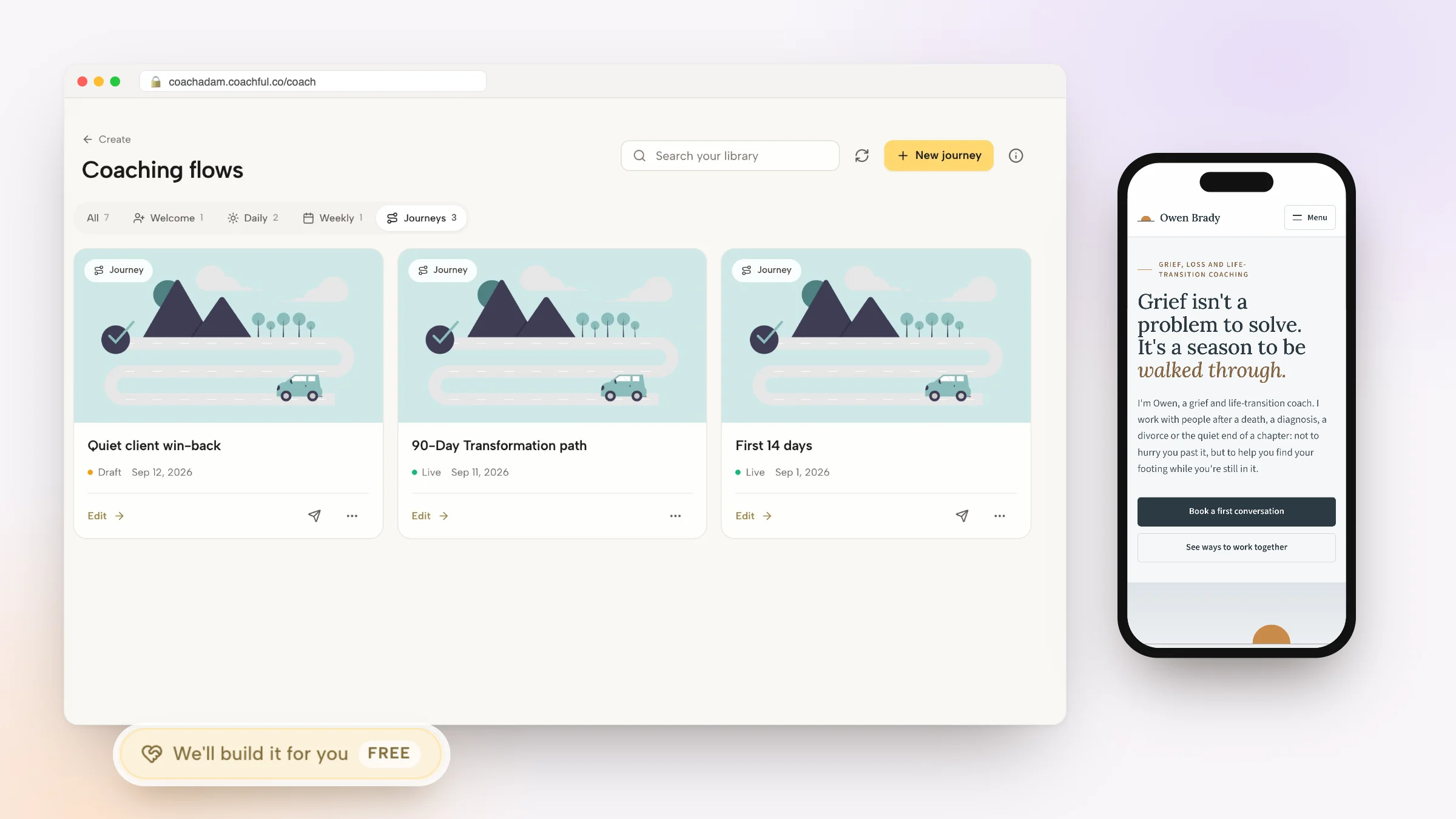
If you are evaluating how to organize those handoffs, try the Coachful interactive demo and inspect the webinar, connections, links, email and offer screens shown here. Map your own rehearsal against the actual surfaces before moving a live event. Software can hold the steps; the dry run establishes whether your particular setup works.
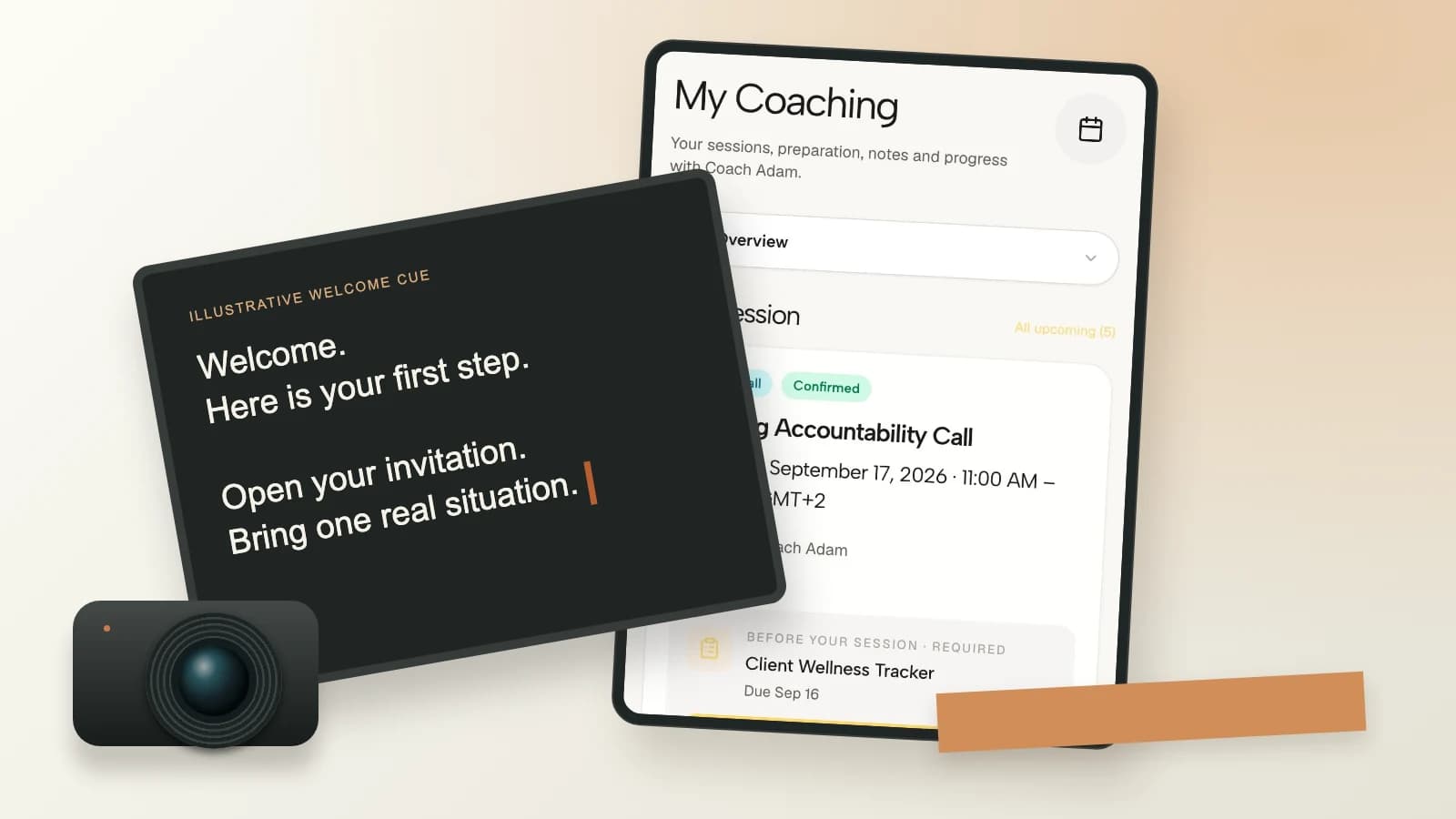
Visual note: product images show real Coachful demo screens. The cover is an original editorial composition of those screens, not a new interface. The test-loop and issue-log graphics are original teaching aids; all checklist items and example instructions remain in live text.