How to Record Online Course Videos: 7 Steps for Coaches

Nour
Founder, Coachful
Do you need a camera, studio lights and an expensive microphone before you can record your coaching course? No. Start with the equipment you already own, choose a recording format that shows the task clearly, and make a short pilot that you watch as a learner. Fix intelligibility, privacy and playback before recording the rest.
The costly mistake is not using a phone camera. It is filming twelve lessons before discovering that your microphone was disconnected, your worksheet text is unreadable, or private client information appears in the screen recording. A repeatable test matters more than a more elaborate setup.
This guide explains how to record online course videos for a coaching practice, from choosing the view to checking the delivered lesson. It is a production guide, not another curriculum outline or a rule about the perfect runtime. If you have not decided what to teach, start with our guide to creating an online course for coaching clients.
1. Choose the recording format by what the learner must see
Write the action at the end of the lesson before choosing a camera. A career coach teaching someone to compare job descriptions needs to show the comparison. A leadership coach explaining the difference between delegation and abdication may need a short spoken explanation followed by a worked brief. The face on screen is not automatically the most useful thing to watch.
- Face to camera: use it for an introduction, a distinction, a short explanation or a personal orientation. Keep your attention near the lens rather than visibly reading paragraphs from another monitor.
- Screen recording with narration: use it for software steps, a spreadsheet, slides or an annotated document. Enlarge the relevant content and move the pointer deliberately.
- Overhead demonstration: use it when the action happens on paper or with physical materials. Test whether your hand obscures what you are explaining.
- Slides with voice: use it when a simple visual sequence helps, but a live software demonstration would distract. One useful example beats a deck of slogans.

You can change formats within a lesson, but each switch adds editing and checking. For a first recording, choose one primary view and one supporting resource. Do not create a multi-camera project to explain a two-column worksheet.
For example, a hypothetical career-coaching lesson might show a fictional job advertisement beside a blank decision sheet. The coach demonstrates how to separate a stated requirement from an assumption, then asks the learner to repeat the process on a suitable example of their own. No real application, employer correspondence or client record needs to appear.
2. Make the room quiet before making the picture beautiful
Record a few sentences in the actual room at the actual time you plan to film. Listen on headphones. Traffic, ventilation, a refrigerator, a reflective wall and a microphone rubbing against clothing may be more important than the camera specification.
Move closer to the microphone before buying another one. Follow its positioning guidance, keep the distance reasonably consistent and avoid touching the desk or cable while talking. A microphone placed far away can capture plenty of room sound even when it is expensive. A headset or existing external microphone is worth testing before you purchase anything.

For the picture, place the camera near eye level on a stable support. Face a source of soft light rather than sitting with a bright window directly behind you. Check your face and the actual teaching material in the recorded file, not only in the camera preview. Daylight changes, so a setup that worked at breakfast may look different later.
Keep the background relevant and quiet. You do not need a bookshelf arranged to establish intellectual credibility. Remove identifying paperwork, private calendars, family photographs you do not want distributed and anything that might become a distraction or privacy problem.
A sensible first equipment decision: use your current phone or webcam, a stable support, the quietest workable room and the best microphone already available. Upgrade only after a pilot exposes a particular limitation. No equipment purchase in this article is required, and no price or quality guarantee is implied.
3. Prepare a clean recording workspace
For screen recordings, use a separate browser profile or recording workspace containing only the material needed for the lesson. Close client portals, inboxes, messaging apps and unrelated tabs. Turn off notifications and check whether the recorder captures the whole display, one application or a selected region.
A window-only capture can reduce accidental exposure, but it is not permission to leave sensitive material nearby. Dialog boxes, bookmarks, recent-file menus, browser suggestions and your clipboard can still reveal information. Review the whole frame, including the top and bottom edges.
Use fictional demonstration data created for teaching. Replacing a client name does not necessarily anonymize a recognizable story, message or business situation. If real client material is genuinely necessary, resolve the relevant confidentiality, permission, rights and legal questions first. A coaching agreement is not automatically permission to sell a recording of a session.
Check rights to slides, photographs, music, assessments and worksheets. Owning a copy of a book or buying access to a tool does not necessarily give you permission to reproduce it in a paid course. When in doubt, use original materials or obtain appropriate permission.
For readable screen demonstrations, enlarge the working content until the critical words remain legible in a small playback window. Hide irrelevant panels where possible. Avoid quickly scrolling through a page while speaking about something the learner can no longer see.
4. Record a pilot, then check sound and screen detail
Make a short test containing normal speech, the loudest emphasis you expect, one actual demonstration and the transition to the learner's task. A minute or two is a practical test size, not a requirement. Include the hardest part of the setup, not just an easy introduction.
Confirm that the intended microphone is selected in the recording application. A connected microphone is not necessarily the active input. If you are demonstrating software that makes sound, check separately whether system audio should be included and whether your recording route captures it.

Listen for missing words, distortion, echo, repeated background sounds and changes in volume. If loud phrases sound broken or harsh, reduce input gain or change microphone placement and record again. Do not assume an editor can repair a damaged recording without affecting speech.
Then inspect the picture at normal playback size. Can you read the example without pausing and zooming? Is the pointer visible? Does your face cover the part of the screen you are explaining? Is the frame stable when you write or move your hands?
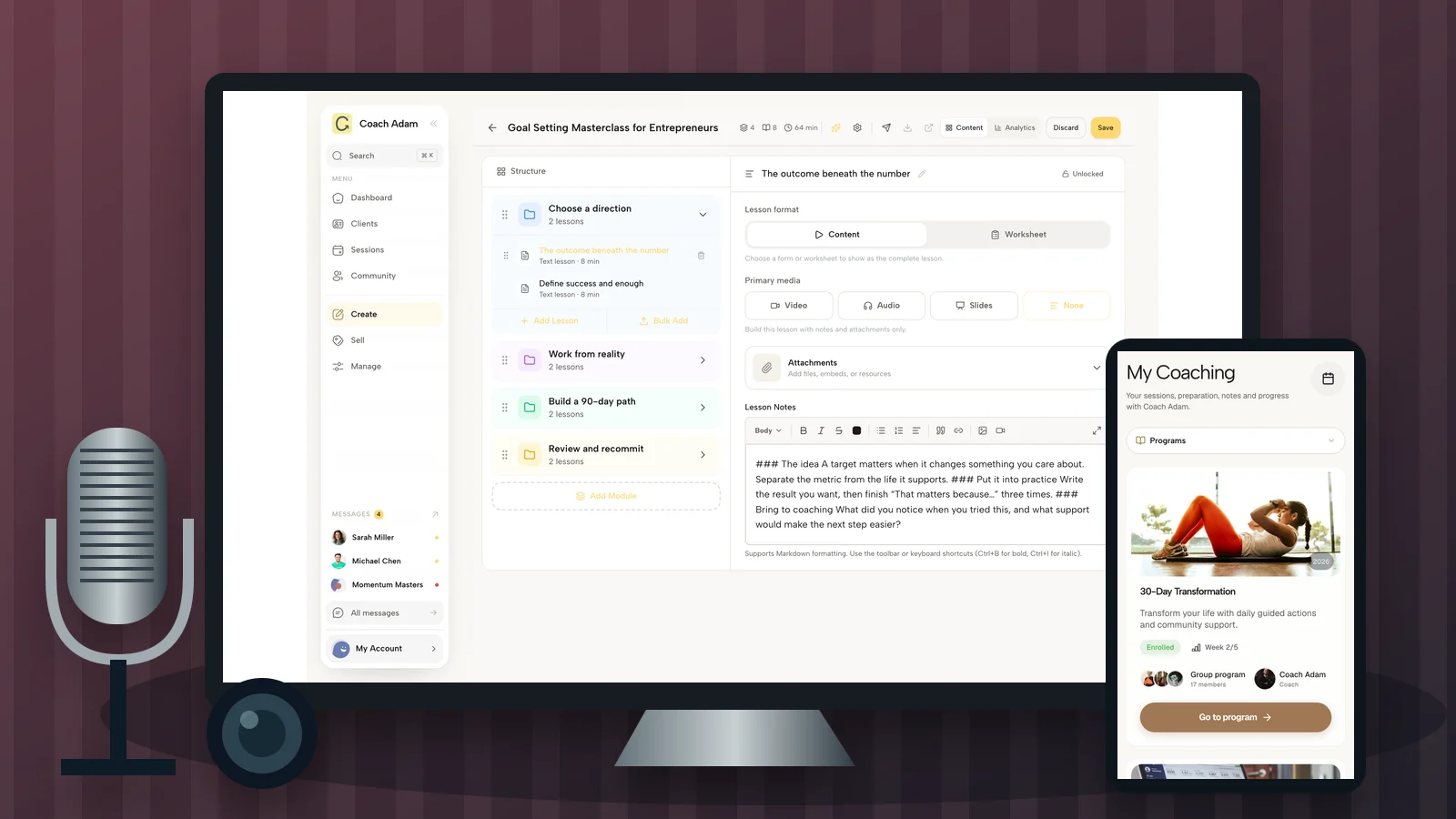
Place the pilot in the actual lesson destination and check the supporting instructions. In the real Coachful demo below, the editor separates modules, lessons and lesson content. That structure lets you plan the destination of the recording rather than ending production with a folder of vaguely named files.

A pilot script you can adapt
“In this lesson, you will draft the first three lines of a delegation brief. I will use a fictional project, show how the outcome differs from the method, and then ask you to draft your own version. Pause after the example and use the worksheet below.”
This is an original hypothetical teaching script, not a client conversation. It tells you what to test: the spoken explanation, the displayed brief, the pause instruction and the worksheet handoff. If one of those elements fails, solve it before filming the module.
5. Record in sections, not in a single heroic take
Prepare talking points rather than relying on memory. Include the opening promise, the example, any important boundary and the closing action. Script exact wording when precision matters, such as explaining the limits of an exercise. Otherwise, an outline can help you speak naturally without turning the lesson into a memorization test.
Record one coherent section at a time. When you make a mistake, pause, restart the sentence from a clear point and continue. Leave enough separation to find the edit. Repeatedly restarting the whole lesson can consume the energy needed for the useful demonstration.
Batch compatible lessons once the pilot works: the same camera view, microphone position, screen layout and materials. Keep a short setup note or reference photograph so you can recreate the arrangement for corrections. Consistency makes replacement footage easier to use; it is not a reason to keep recording after your explanation becomes tired or unclear.
Use filenames that identify the course, module, lesson and version. For example, delegation-m02-l03-brief-v01.mp4 is easier to reconcile than final-final-new.mp4. Keep the original recording separate from the edited export, and make an appropriate backup before deleting anything.

The demo library above shows why the destination matters. A reusable lesson and a client-specific message serve different purposes. Decide whether the recording belongs in a general course, a particular program or a private communication. Do not accidentally turn personalized coaching feedback into course material.
6. Edit for understanding and export for the destination
Remove false starts, long setup delays, accidental disclosures and repetitions that do not help the learner. Keep useful thinking space when the person is supposed to pause, write or notice something. A tightly edited video can still be a poor lesson if the instruction becomes too fast to follow.
Cut at a coherent boundary. If you split a recording, give the next part enough orientation to stand on its own. Avoid an abrupt beginning such as “and that is why the second one matters” when the learner may return days later. For the separate decision about runtime, see how long online course lessons should be.
Choose export settings supported by the destination and test an actual file. A conventional landscape instructional recording might start at 1080p and the frame rate used during capture, provided the host supports it and the content is readable. That is a production starting point, not a Coachful upload requirement.
If you use YouTube as the host, its recommended upload encoding settings specify MP4 as a container and H.264 for video, among other detailed settings. Those are YouTube recommendations, not universal settings for every course platform. Follow the current requirements of the service you actually use.
Do not repeatedly compress an already compressed export. Keep a higher-quality source and make a delivery version from it. Watch the delivery file from beginning to end; a successful export notification does not tell you whether the middle has missing audio or the final instruction was cut.
Add accurate captions and a useful transcript or text alternative through the tools available in your delivery setup. Review names, specialist terms, punctuation and instructions. Automatic text is a draft to check, not proof of accessibility. Describe essential visual changes aloud and keep worksheets accessible independently of the video.
7. Approve the lesson as a learner, not as its creator
Upload or embed the recording using the supported route in your chosen course system. Then open the actual learner experience with appropriate test access. Do not assume that a file playing in the editor proves that an enrolled client can reach it.

Check the course title, lesson title, order, instructions and accompanying resource. Play the opening, an important demonstration and the ending, then watch the whole delivered lesson before release. Confirm that the action named in the video matches the worksheet and that the next lesson does not assume a missing step.
Try headphones and an ordinary device speaker at a comfortable level. Test a phone as well as a desktop. A recording that depends on tiny spreadsheet text may need a clearer crop, a separate downloadable example or a different teaching format rather than a higher-resolution camera.

If the lesson sits inside a program, inspect the task sequence too. A learner needs to know what to watch, what to do afterward and where to bring questions. The mobile demo above illustrates the entry screen for a program, not the lesson itself or a promise that every course automatically uses that layout.
For restricted content, check access from an account that should not have permission as well as one that should. Hosting a video at an unlisted URL is not the same thing as a strong access boundary: anyone who obtains that link may be able to view it, depending on the host. Match the hosting choice to the sensitivity of the material.
A recording approval checklist to copy
- Purpose: one stated learning action and an example that actually demonstrates it.
- Privacy and rights: no unintended client information, notifications or unlicensed material.
- Audio: the right input, intelligible speech, no distracting distortion or recurring noise.
- Picture: stable frame, readable teaching material and no obstructed controls or examples.
- Delivery: the intended learner can find and play the finished lesson.
- Alternatives: checked captions or transcript and usable supporting materials.
- Handoff: the video, instructions, worksheet and next step agree.
- Recovery: source recording, final export and version notes are retained appropriately.
Do not turn this into an elaborate production bureaucracy. It is a release check for the same mistakes that are painful to discover after clients arrive. For a small course, one owner can record the decision and any unresolved issue in a simple private production log.
Use viewing data to find questions, not to diagnose learners
After release, inspect the signals available in your delivery system. The real Coachful analytics screen below shows course measures and retention information. A repeated drop near an example might justify checking readability, pacing or the transition, but the chart does not tell you the cause.

Someone may stop because they finished the relevant part, were interrupted, could not hear clearly or needed more time to practise. Ask proportionate questions and inspect the lesson before concluding that the client lacks motivation. Completion is also not proof that the person can perform the task.
Change the recording when you have a concrete reason, preserve a sensible version history and tell affected learners about a material correction. Do not endlessly rerecord your introduction because you dislike hearing your own voice. Prioritize an inaccurate instruction over an imperfect hairstyle.
If you want to inspect the lesson editor, course library and learner experience used in these examples, Try the interactive demo. Bring one proposed recording and trace its destination, supporting task and playback check. That is a more useful evaluation than browsing features without a lesson to deliver.
Frequently asked questions
Can I record an online course with my phone?
Yes, when the phone produces a stable, readable image and usable audio for your teaching task. Put it on a support, test microphone placement and watch the exported pilot. For software demonstrations, a screen recorder is usually more direct than pointing a phone at a monitor.
Do I need to appear on camera in every lesson?
No. Use your face when it helps explain or orient, and show the example when the learner needs to follow an action. A clear narrated document walkthrough can be more useful than a talking head describing something the learner cannot see.
Should I record the entire course before checking it?
No. Approve one representative pilot in the actual learner destination first. Then record in manageable batches and check each delivered lesson. Testing only the raw file leaves upload, permissions, captions and mobile readability untested.
Can I turn a recorded coaching session into a course lesson?
Do not assume so. Resolve confidentiality, permissions, participant rights and applicable requirements before reuse. A purpose-made demonstration with fictional material is often a cleaner teaching choice than trying to remove identifying details from a private conversation.
Sources and limits: Ohio State's instructional-video recording guidance is a production reference; YouTube's encoding guidance applies to its own service. Coachful product examples are real demo screens, not customer outcomes. The room layout, waveform sketches, script and production checklist are original editorial examples, not measured performance claims or legal advice.