Online Course Accessibility Checklist for Coaches: 7 Checks

Coachful
Editorial Team
Before selling a coaching course, test whether a client can understand the teaching, operate the lesson and complete the practice without depending on hearing the audio, seeing the visuals or using a mouse. Start with one complete lesson, including its worksheet and return route, then repeat the checks across the course. Automatic captions and a tidy mobile page are useful, but neither establishes that the learning experience is accessible.
The expensive mistake is discovering the barrier after enrollment: the lesson plays, but the captions reverse an instruction, the worksheet is an image, or the client cannot reach the next activity. The coach has delivered files without delivering a usable way to learn.
This online course accessibility checklist is for coaches creating self-paced teaching alongside their practice. It covers course materials and the enrolled-client experience, not a marketing website audit. It is a practical first review, not legal advice, a complete WCAG evaluation or a certification of Coachful or another provider.
Before the seven checks: choose a real lesson and a real task
Use a test client account you control, not your coach login. Choose a lesson containing your typical media, instructions, activity and follow-up. If different lessons use different players, document formats or external tools, those need separate checks too. Passing one video does not clear the whole library.
Write the intended task in ordinary language: “Open the workload lesson, watch or read the explanation, draft one change to a commitment, and find how to bring it to coaching.” Include login, attached files, embedded tools and anything that opens in another tab. Avoid live charges or submitting sensitive client information during testing.

Keep evidence for each result: the course and lesson version, URL, device, browser, assistive technology used, steps attempted, observed barrier and repair owner. Use “not tested” when appropriate. A screenshot proves what was visible at one moment; it does not prove that a control works with a keyboard or is announced correctly by a screen reader.
1. Review captions against the actual audio
For prerecorded teaching video with meaningful audio, provide accurate synchronized captions. They need to communicate the speech and relevant sounds, not merely summarize the message. Identify speakers when necessary to understand who is speaking, and include meaningful non-speech audio where it contributes to the lesson.
Check every lesson, not just its opening minute. Coaching terminology, names, numbers and negations deserve particular attention. In a hypothetical lesson, the spoken instruction “Do not submit the draft yet” becomes the opposite instruction if the caption drops “not.” A plausible-looking transcript can still teach the wrong action.

Play the video with sound muted and captions enabled. Can you understand the explanation, distinguish the speaker and follow the practice instructions? Then compare the captions with the audio, checking timing, missing phrases and text obscured by other information. Do not assume a generated track is ready because processing finished.
Coachful’s current course product page states that uploaded video receives automatic captions and a transcript. Treat generation as a starting point for review, not a promise of perfect accuracy. Check the output and the correction options available for your actual media; escalate a blocker rather than selling an unchecked version.
2. Supply a usable transcript and describe essential visuals
Captions and transcripts do different jobs. Captions accompany the video in time; a separate transcript lets someone read or search the material independently. A short summary can help orientation, but it is not an equivalent substitute when it leaves out instructions or the reasoning needed to do the activity.
Visual teaching needs attention too. If you point to a chart and say “Aim for this,” the audio alone does not communicate the lesson. Describe the relevant relationship while recording. For an existing video, assess whether integrated description, a described version or another appropriate solution is needed. A text note is helpful but does not automatically satisfy every audio-description requirement.

For example, replace “Aim for the yellow bar” with “The second bar is lower because it represents fewer planned commitments, not less effort.” This is an invented teaching example, not research data. Its meaning remains available without the chart, its colour or the position of your pointer.
Give the transcript a descriptive link beside the lesson, include important visual information in a descriptive transcript, and preserve meaningful headings. Check any downloadable version separately. W3C’s audio and video accessibility guide distinguishes captions, transcripts, visual description and player accessibility; do not treat any one of them as a universal replacement for the others.
3. Make the lesson understandable without its layout
A client should be able to identify what the lesson is for, what to do and where to continue without reconstructing the page from visual clues. Give it a meaningful title, a short purpose statement, structured instructions and a clearly named next action. “Prepare one workload conversation” is easier to return to than “Bonus Part 3.”
Use genuine headings for sections rather than only large or bold text. Make link names identify the destination: “Open the workload worksheet” is more useful than several unrelated “Click here” links. Explain file types where relevant, and avoid instructions that depend only on colour, shape or position.

Here is a copyable lesson introduction for a hypothetical leadership-coaching course: “In this lesson, draft an opening for one conversation about workload. Read the example or watch the captioned explanation, then open the workload worksheet. Bring one sentence you want to improve to your next coaching session.”
Put the essential instruction in live text even when you also explain it in the video. For an informative image, provide a meaningful alternative and a nearby explanation when the content is complex. Do not bury an entire worksheet or teaching framework in a graphic and call its filename an adequate alternative.
Inspect the published learner view, not just the editor. A toolbar offering formatting does not prove that your headings, reading order or accessible names were delivered correctly. Ask a qualified evaluator to check semantics and assistive-technology behavior when those are beyond your own testing skills.
4. Operate the lesson and media without a mouse
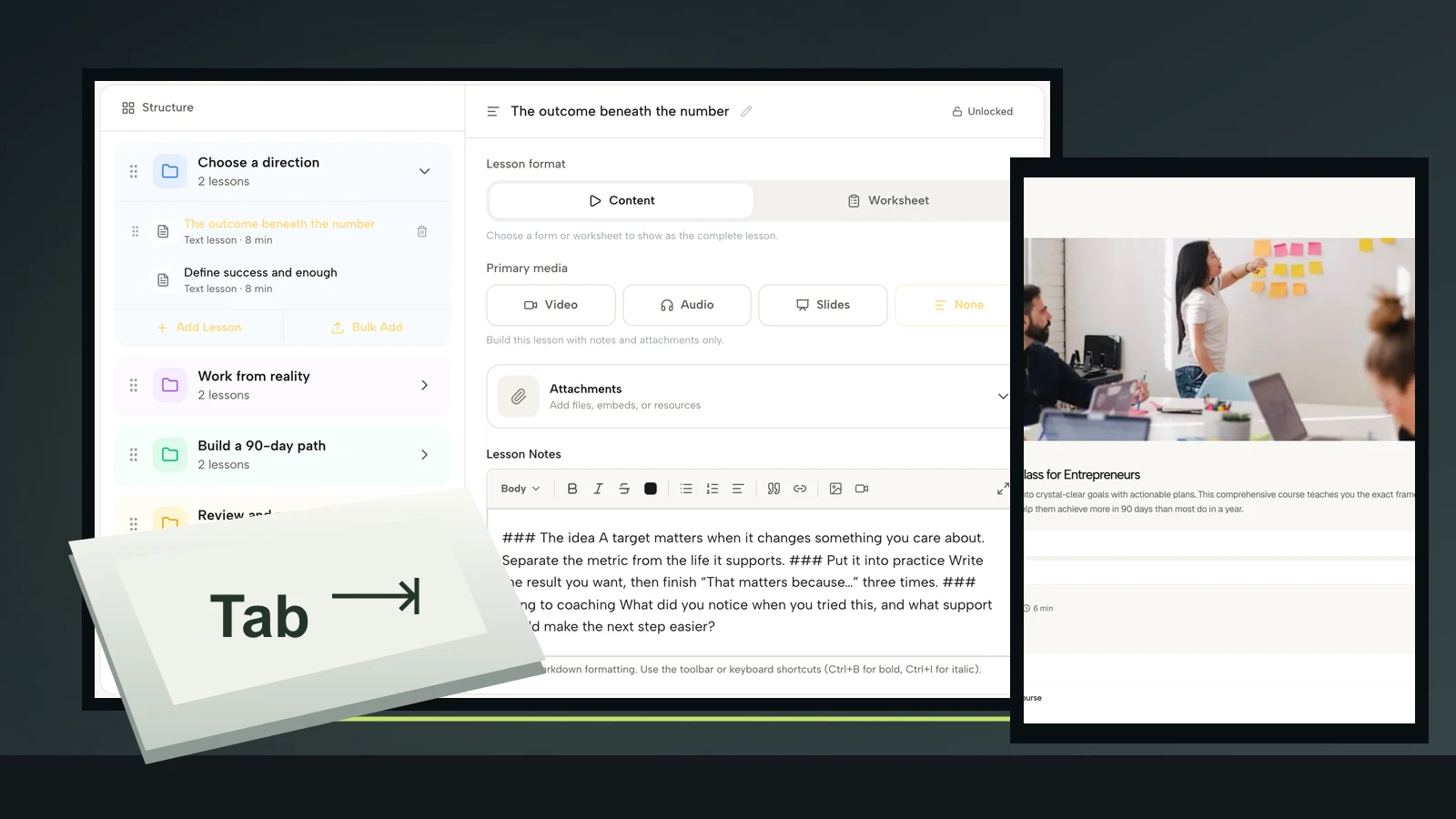
Start at the client login and put the mouse aside. Use Tab and Shift+Tab to move through controls, then the appropriate activation and navigation keys for each component. Browser and operating-system settings can affect keyboard navigation, so check those before diagnosing a missing focus stop.
Can you reach the lesson list, open a lesson, play and pause the video, operate captions, seek where supported, open attachments and continue? Can you leave an embedded player or dialog? Focus should remain visible and move in a meaningful sequence rather than disappearing behind an overlay or becoming trapped.

Test the actual player for each media source you use. An uploaded video and an externally embedded video may behave differently. If an activity requires dragging items, hovering or drawing with a pointer, investigate an equivalent keyboard-operable method rather than assuming the surrounding course platform fixes the interaction.
Record the exact failure. “After opening lesson two, Tab enters the embedded player and cannot reach the next-lesson control” gives a provider a reproducible problem. Include the device, browser and steps. For screen-reader checks, record the software and what was announced instead of reporting that the page merely “looked accessible.”
If a required action is blocked, supply a workable equivalent route while the underlying issue is repaired. Do not describe that temporary route as proof the original barrier has disappeared. And do not advertise universal accessibility based on a successful test with one keyboard and browser.
5. Check the worksheet as carefully as the video
A beautifully captioned lesson can still end at an unusable exercise. Open the actual downloadable document or delivered form, not the editable source. Image-only PDFs, floating text boxes and multi-column layouts can create problems even when the page looks polished.
For a document, inspect selectable text, meaningful headings, reading order, image alternatives and any form fields. Selectable text is necessary in many documents but is not a complete accessibility check. Use the document authoring tool’s accessibility features and obtain specialist review where needed; exporting to PDF does not certify the result.

For a form, check persistent labels, required-field instructions, meaningful grouping and error recovery. Using safe test data, submit an empty required field and an invalid value. Can the client identify the problem, reach it and correct it without losing earlier work? Check both the visible feedback and its assistive-technology behavior.

Offer an equivalent way to do the learning when a format blocks access. A workload reflection might be completed in structured text rather than handwriting inside tiny boxes. Preserve the intended thinking task, not an arbitrary layout. Keep sensitive reflections private and collect only what the coaching agreement genuinely needs.
Where participation involves a workplace example, invite anonymized descriptions rather than confidential documents. Accessibility review is not a reason to collect another person’s health information or an employer’s private records. Use invented content when testing forms and document exports.
6. Let clients control pace, display and participation
Check whether clients can pause, revisit instructions and return to the task without being rushed by disappearing content or an unnecessary timer. For a self-paced coaching lesson, a reflection countdown usually measures speed rather than the intended learning. Remove time pressure unless it is genuinely essential to the activity, and assess appropriate alternatives.
Enlarge text and inspect the actual lesson at narrow widths. Can someone still reach the player, read instructions and submit the activity? A neat mobile screenshot is not evidence of screen-reader compatibility, and a desktop zoom check is not the same as trying the delivered mobile experience.
Check colour contrast with an appropriate tool and do not make colour carry the meaning alone. In a priority exercise, label categories as well as colouring them. For a complex diagram, keep its explanatory text available separately so enlarging a picture is not the only route to understanding it.
A lower-bandwidth alternative can also help, but keep the learning equivalent. If a demonstration depends on visible steps, an audio-only export without those steps is not enough. If you provide written practice instead of a recording, explain the same task and give the same route to any promised feedback.

Follow the handoff back to coaching. The client may need to find a session-preparation task, send a question or locate their next appointment after completing the lesson. Test that route as part of the learning experience rather than stopping the audit when the video reaches its final frame.
7. Create an adjustment route and close the repair loop
Tell clients how to report a barrier before they encounter one. Put a monitored contact route near the course introduction and relevant materials. Ask what would help them participate, not for a diagnosis or a justification of why they need it. Avoid asking someone to disclose sensitive information in a public community thread.
Use a realistic invitation: “If a lesson, recording or worksheet prevents you from taking part, contact [monitored address] with the lesson name and what you were trying to do. Share only the details you are comfortable sharing. We will discuss an alternative and the next step.” Replace the placeholder before publishing your own course.
Agree response expectations you can maintain. An alternative delivered after a group discussion has ended may not offer equivalent participation. Decide who owns the repair, what the client can use in the meantime and how you will confirm that the replacement actually works for them.
Do not make affected clients your unpaid quality-assurance team. Invite feedback respectfully, obtain appropriate testing help, and compensate specialist evaluation where applicable. One participant’s successful experience is valuable evidence about that experience, not permission to claim the course works for everyone.
A copyable course accessibility audit record
Use one entry per issue. This fictional example shows the level of detail that makes a repair actionable; it is not a report of a problem observed in Coachful.
- Course and version: Workload Decisions, pilot version.
- Lesson and task: Lesson two, open the workload worksheet and draft one commitment change.
- Environment: Record the actual device, browser and assistive technology used.
- Observed barrier: The exported worksheet contains its instructions only as an image; the test reader cannot access the task text.
- Interim equivalent: Provide the same instructions and response prompts in a structured text document.
- Repair owner: Named course author or document specialist.
- Retest: Record the updated file, the task attempted and the result, including anything still untested.
Prioritize barriers that prevent access to required teaching or practice. Then repair missing or misleading information and improve avoidable friction. Keep the course version and retest evidence together, especially after replacing a video, changing an embed or exporting a new worksheet.
Frequently asked questions
Do automatic captions make a coaching course accessible?
No. They address one part of the audio experience and still need accuracy review. Visual information, player controls, lesson structure, documents, exercises and support routes need their own checks. A transcript does not replace synchronized captions where captions are required.
Can I say my course is WCAG compliant after this checklist?
No. W3C’s Easy Checks guidance explicitly warns that simple checks can pass while significant barriers remain. Comprehensive evaluation and any legal obligations depend on more than this article. Seek qualified accessibility and legal advice for the claims and requirements relevant to your course.
Should I make every course activity text-only?
No. Choose formats that teach the intended skill, then provide appropriate access to their meaning and operation. A useful demonstration can remain a demonstration; describe its essential visuals, provide accurate captions and appropriate text alternatives, and verify the player and related practice.
Test one complete lesson before inviting the next client
Choose the lesson a client will use first. Review its captions, explain its visuals, operate its controls, complete its worksheet and follow the return route. Repair a blocker before adding another polished recording. Document what you tested and what still needs specialist review.
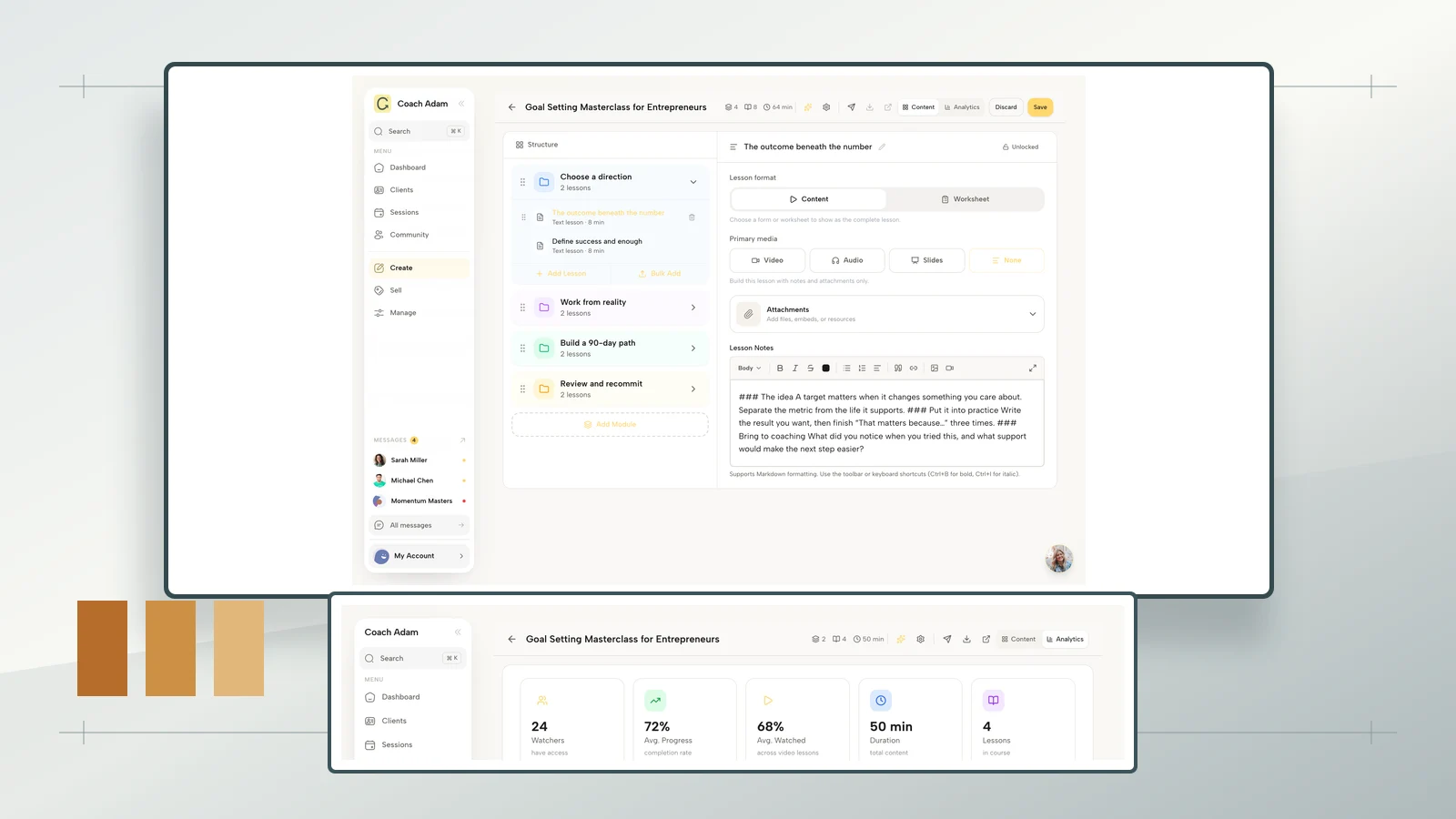
If you are choosing where to deliver the course, Try the interactive demo with that specific task in mind: inspect the lesson editor, client course and worksheet handoff. The real screens above show places to investigate, not a certification that your eventual materials or every interaction are accessible.
For the wider delivery decision, see our guide to accessible online coaching beyond live sessions. This course-level audit serves a narrower purpose: make the actual teaching and practice usable, not merely available.