Webinar Replay Page for Coaches: 7 Sections and a Template

Nour
Founder, Coachful
What should a coaching webinar replay page include so a registrant can actually use the recording, rather than open another tab and forget it? Give them the recording immediately, explain the useful sections, and make one relevant next step easy to understand. A replay page is a viewing destination, not a second registration page with a video buried underneath your sales pitch.
The practical structure is seven sections: a recognizable title, an accessible player, chapter navigation, the promised resource, a short coaching invitation, a specific next-step link, and honest access details. You do not need a countdown, another long biography or an elaborate launch to make those sections useful.
This guide is for coaches designing the page after an event. It includes a filled fictional example, access and recording-permission checks, and a signed-out testing method. The recommendations are editorial guidance, not tested conversion promises.
First decide who the replay page serves
A registrant returning for one exercise has a different job from a new visitor discovering the workshop through search. Decide whether the page serves existing registrants, new viewers, paying participants or some combination. That decision determines the access route and the context you need to provide.
- Existing registrants: deliver the promised recording without making them repeat an unnecessary form.
- New viewers: explain what the workshop covers and whether access requires registration.
- Paying participants: honor the access period and materials included in their purchase.
- A private coaching group: use appropriate restricted access rather than treating an unlisted URL as confidentiality protection.
Do not call a recording live. If you edit a live workshop into an on-demand lesson, describe the actual format. A recording can still be valuable without pretending the viewer arrived at a special moment.

For the registration page, event promotion and overall timeline, use the webinar funnel guide. For the messages delivering this page, use the webinar follow-up email templates. Here, the job is the destination those messages should link to.
The seven sections of a useful webinar replay page
Keep the structure short enough that someone can recognize the event and start watching without a tour. The invitation belongs near the lesson it continues, but the promised recording should not become a hostage to the invitation.

1. A recognizable title and a useful one-sentence description
Use the event name people registered for. If the final recording has a different title, connect the two explicitly. Someone who signed up for a career workshop should not have to guess whether a newly named “transformation masterclass” is the same event.
Under the title, state the practical task and final runtime. For example: “A 32-minute recording on comparing three possible career directions and choosing a small experiment.” Runtime helps someone decide whether to watch now or return later; it is not a promise that their career decision will be solved in 32 minutes.
If there are prerequisites, name them briefly. “Bring one role you are considering” is useful. A lengthy intake questionnaire before a free replay is usually a different exchange from the one you originally promised.
2. The recording, with working playback and accessible alternatives
Place the player near the top. Check the final uploaded version, not your local export. Confirm that the audio starts correctly, screen-shared text is legible and the player works on a phone without requiring an app you never mentioned.
Provide accurate captions and a written recap where possible. Review automated captions for names, specialist terms and any wording that changes meaning. If captions or a transcript are not available, say so honestly and consider an appropriate alternative rather than labeling the video accessible by default.
The W3C guidance on accessible audio and video explains the roles of captions, transcripts and descriptions. It is a useful production reference, not a substitute for checking which requirements apply to your organization.
Choose a poster frame that represents the lesson. Avoid a participant grid, a confidential worksheet or a dramatic promise the recording does not support. Do not autoplay audible video while the visitor is trying to read the page.
3. Chapters that name the useful moments
List a few decision points rather than every slide. A viewer looking for the exercise does not need a timestamp for the housekeeping introduction. Name the work they can revisit: comparing options, drafting a question or preparing an experiment.
Take timestamps from the final edited recording. Removing a five-minute introduction changes every later chapter. Check that each link seeks correctly in your player; when seeking links are unsupported, give readable timestamps someone can navigate manually.

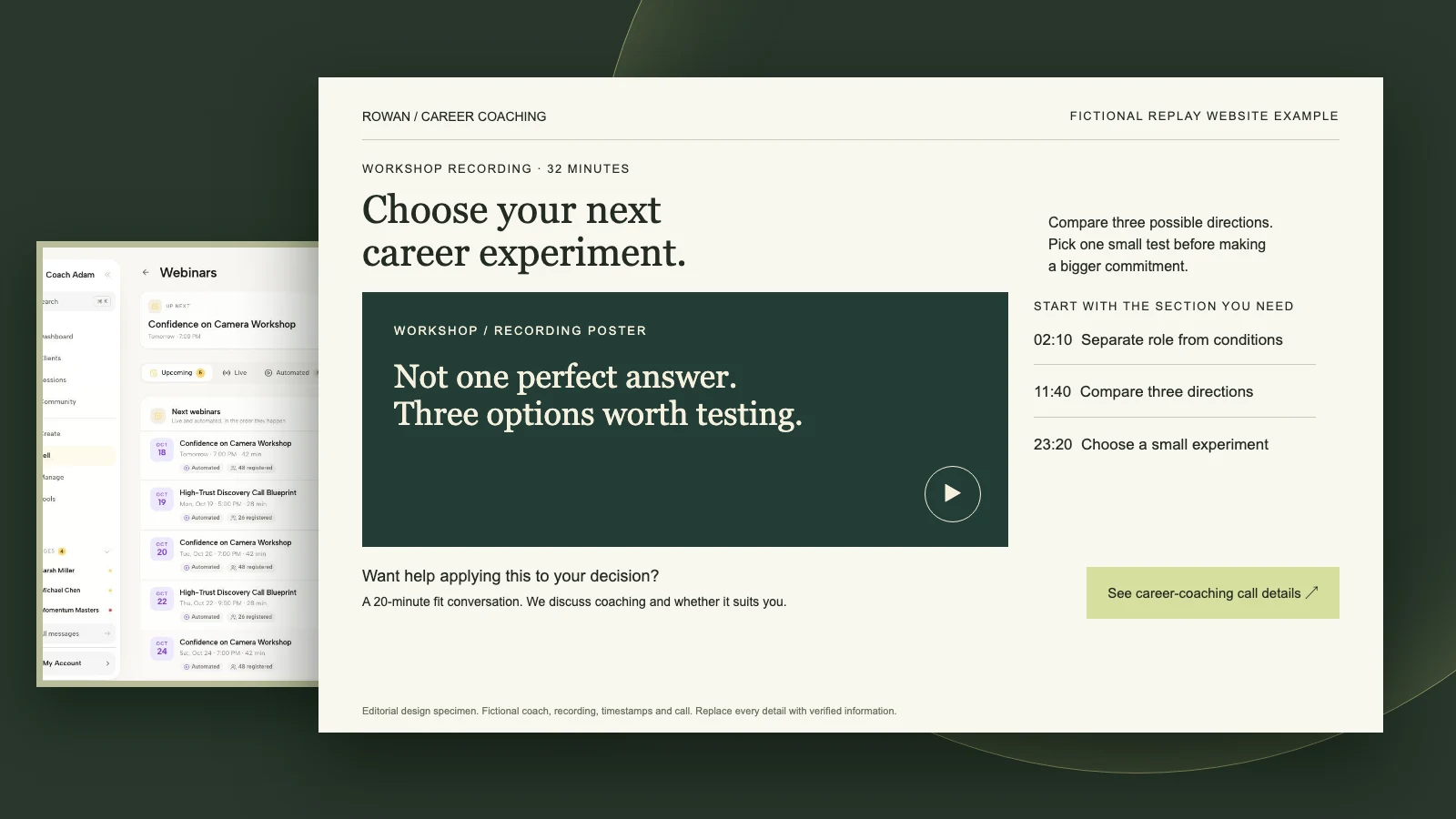
In the fictional career-workshop example, the chapter list is:
- 02:10: separate the role from the working conditions.
- 11:40: compare three possible directions.
- 23:20: choose one small career experiment.
These are illustrative timestamps, not links to a real recording. On your page, replace them with verified times and meaningful link labels. Keep the chapter list in live text outside the video so someone can still use it when the poster image does not load.
4. The worksheet or resource you actually promised
If the workshop included a worksheet, put a clearly named download or resource link beside the exercise description. “Download the career options worksheet” is more useful than “Get the bonus.” State the format and any access requirement.
Test the resource as a signed-out visitor. A document that opens because you own it may still ask everyone else to request permission. Avoid sending registrants into a separate purchase flow for a resource you said was included.
If there was no worksheet, do not invent one merely to fill this section. A short written recap and one practical prompt may be enough. The replay page should fulfill the original promise before adding another assignment.
5. A short bridge from the lesson to your coaching offer
The bridge should explain what coaching adds. A recording can teach someone to compare career directions. Individual coaching might help them examine their own constraints, decide which experiments are appropriate and review what they learn. That is a clearer relationship than a sudden “Ready to transform your life?” button.
State who the next step suits and one important limitation. For example: “This coaching is for people exploring a career decision, not a recruitment service or a guarantee of a new role.” Use the boundary relevant to your actual work.
If you link to a paid program, make its format, commitment, fee and terms easy to find before purchase. Do not imply that a workshop exercise proves someone needs your most expensive package.

6. One primary next step with a descriptive label
Choose the action that genuinely follows from the lesson: review coaching details, book a fit conversation, apply to a program or enroll in an appropriate offer. Do not present four equally prominent destinations and make the viewer decode your business model.
Describe the action before the button. If a call is a sales or fit conversation, say so. Include its duration and any fee. Do not call it “free coaching” when you intend to assess suitability and discuss a paid service.
For the fictional page, the label is “See career-coaching call details.” The supporting sentence says: “A 20-minute fit conversation. We discuss coaching and whether it suits you.” Those details are examples only; your own call must match your actual service.

Verify the destination has appropriate availability. Sending someone to a calendar with no usable times is an operational problem, not proof that your replay headline needs more urgency.
7. Honest access, privacy and help details
Say how long access lasts when there is a real limit. Give the date, time and time zone. Distinguish the recording's access deadline from a program enrollment deadline; one does not imply the other.
If access is ongoing, do not add a resetting countdown. If a cohort closes because delivery starts, explain that real boundary separately. A recording does not become more useful because the page claims the viewer has seven minutes left.
Include a contact route for playback or access problems, along with appropriate privacy and site information. Avoid promising a support response time you cannot meet. On a paid workshop, check that the page matches the access and support terms people purchased.
A filled webinar replay page template for a coach
The following is original fictional copy for a career coach. It is not a customer result, a real workshop recording or a built-in Coachful template. Replace every factual detail, including the recording length, resources, timestamps, scope and call description.
Choose your next career experiment
Workshop recording, 32 minutes.
Compare three possible career directions and choose one small test before making a bigger commitment.
[Accessible recording player, with accurate captions.]
Start with the section you need
02:10: separate the role from the working conditions.
11:40: compare three possible directions.
23:20: choose one small career experiment.Try the exercise
Write three directions you are considering. For each, note one assumption you could test without leaving your current role.[Download the career options worksheet.]
Want help applying this to your decision?
Career coaching gives us room to examine your priorities, constraints and possible experiments. It is not a recruitment service and does not guarantee a job offer.A 20-minute fit conversation lets us discuss your situation, how I work and whether paid coaching is appropriate. There is no charge for this conversation and no obligation to continue.
[See career-coaching call details.]
The recording remains available after this workshop. For playback problems, use [your monitored support route]. [Your privacy notice.]
The recording and chapter list do the first job. The invitation explains a separate service without making the lesson artificially incomplete. Adapt the final access sentence if your real terms differ.
Before uploading: check the recording, not just the page
A polished destination cannot make an inappropriate recording safe to share. Review what is actually captured: participant names, faces, chat messages, case examples, shared documents and spontaneous questions. Editing the title slide does not remove identifying details later in the video.
Confirm that participants understood the recording and intended distribution, and that you have the necessary permissions and rights. If the workshop included sensitive coaching discussions, consider recording a clean teaching-only version instead of redistributing the live session.
Do not assume that attendance equals consent to public promotion. Requirements depend on jurisdiction, context and the information involved. Seek qualified advice when needed. A password or an unlisted link is not a complete privacy policy, and technical access controls do not create permission you did not obtain.
Also check your slides, music, photographs and external materials. Permission to show something once in a live presentation may not cover a downloadable or publicly available recording.
Build the destination without claiming more than the tools prove
Separate three implementation jobs: hosting the recording, presenting the page and connecting the next action. They may share a platform, but each still needs its own test. A page preview does not establish that the video permissions or booking route work.

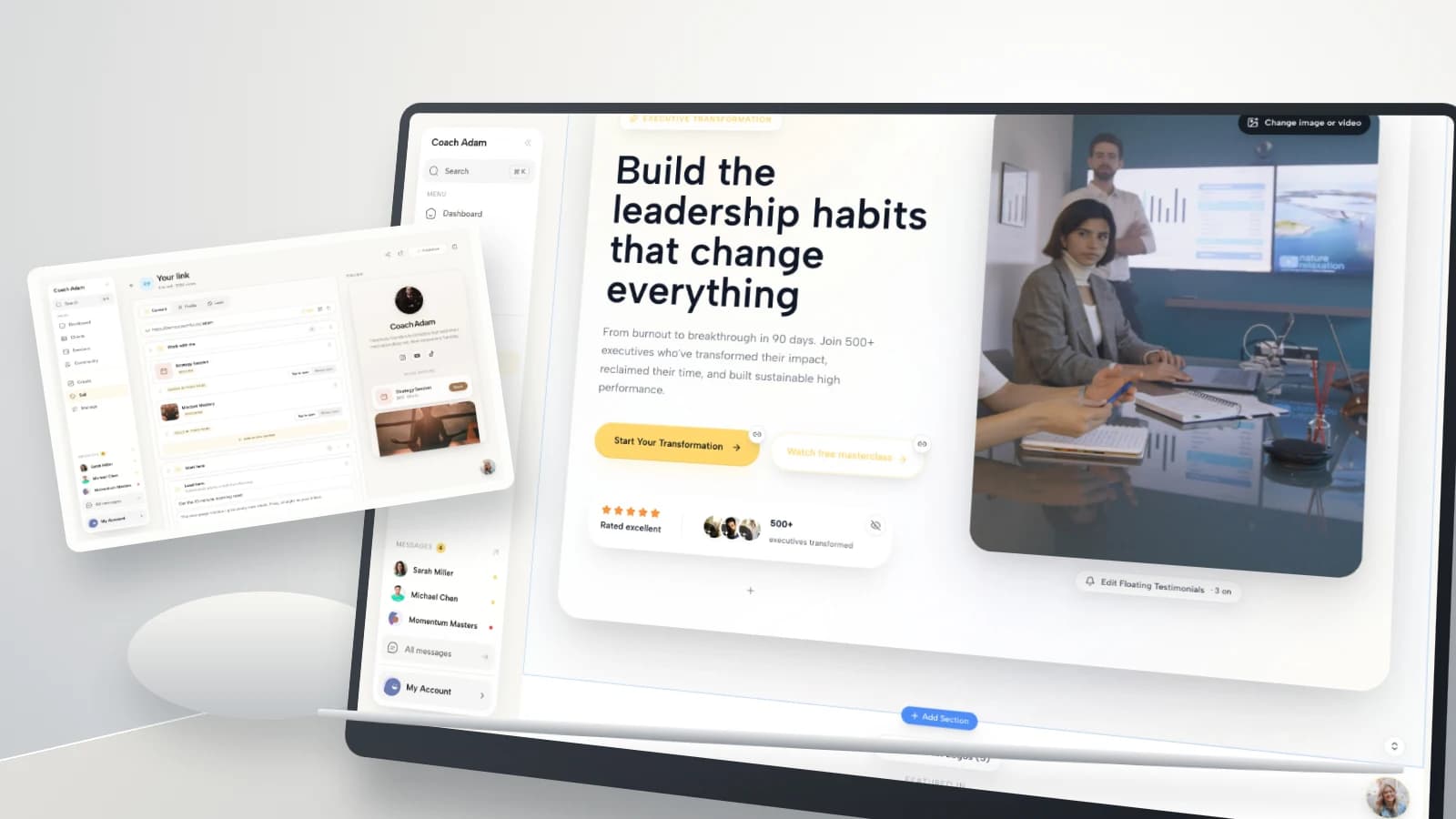
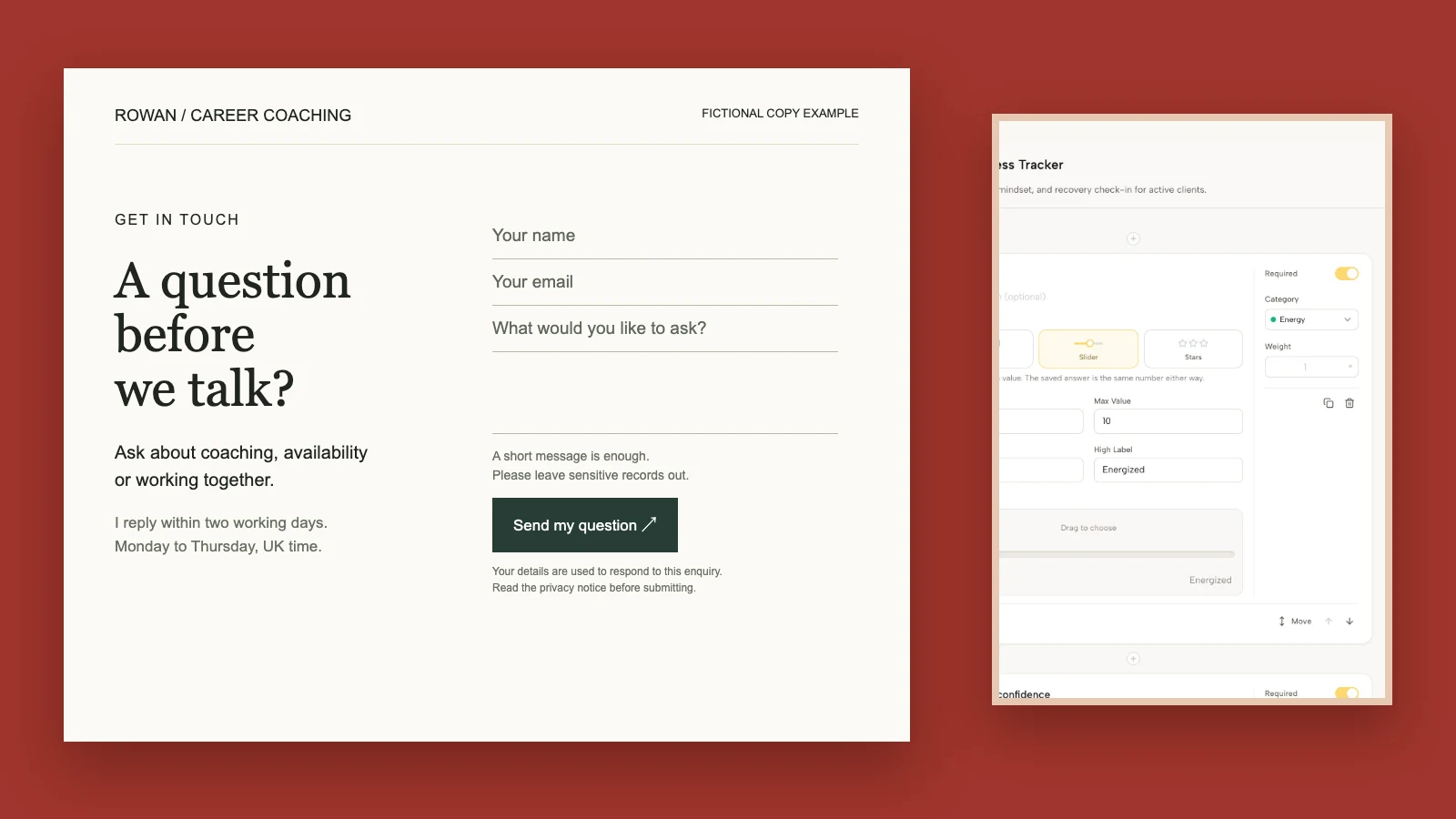
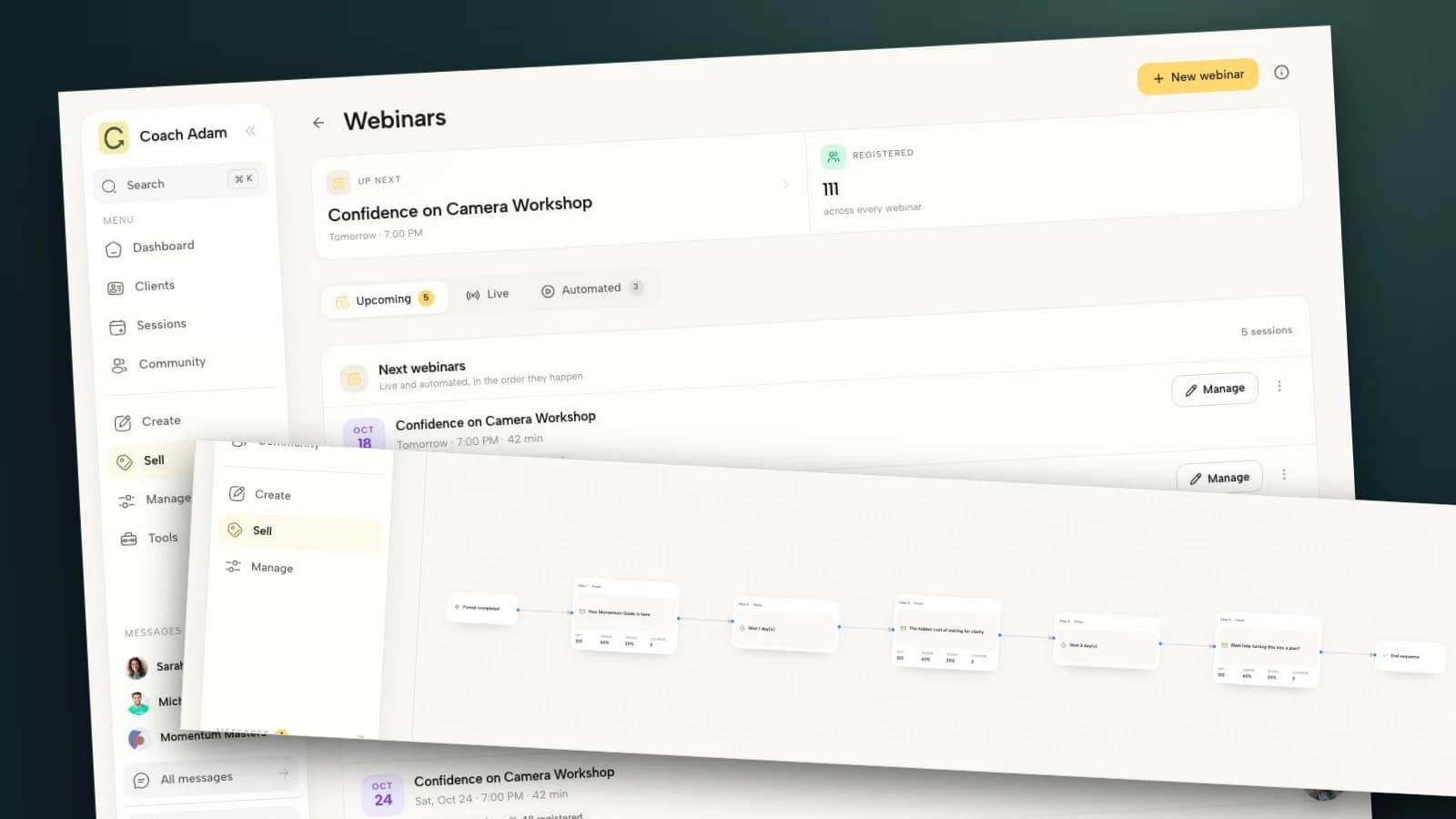
Coachful's real demo includes Webinars, a website editor, coaching bundles, scheduling, public links and an email sequence editor. The screenshots here show those actual surfaces. They do not establish that the fictional replay layout is a ready-made template, that every player supports timestamp links, or that your particular access rules are already configured.
Choose a player and page setup that support your requirements, then verify their actual behavior. If your workflow needs protected access, captions, downloadable resources or specific video controls, test those features in your own setup before promising them.
Test the whole page as a new viewer
Use a fresh signed-out browser and a phone. Do not stop after the page loads on the laptop where you created it. Follow the same link a registrant will receive and exercise the complete route.
- Open the exact public URL. Check the title and recording version, not just the hostname.
- Start playback. Test sound, seeking, captions and phone orientation.
- Follow each chapter. Confirm it matches the final edit or is clearly presented as a manual timestamp.
- Open the resource. Check permissions, file contents and whether downloading requires an unexpected account.
- Take the next step. Inspect the call description, availability, application or offer terms.
- Check access boundaries. Verify both permitted access and the behavior someone sees after a genuine expiry.
- Turn images off. The title, lesson summary, chapters, resources and action should remain understandable as text.

Keep a short test record: date, browser, phone, recording version, resource link and result. If you replace the video later, repeat the chapter and permission checks. Updating one destination can quietly break several messages pointing to it.
Only then send people to the replay
Link the replay delivery email to this final, tested page. Use a descriptive link rather than a shortened destination that hides where someone is going. Mention a genuinely useful section so a busy registrant has a place to start.

Keep promised event delivery separate from unrelated ongoing promotion. Registration is not blanket permission for every future marketing campaign. Verify the expectations set at signup, your email permissions and applicable rules before enabling follow-up.
For evaluation, start with access problems, useful replies and suitable next-step actions. A replay-page click does not prove someone watched; a video play does not prove they completed the exercise. Use watch or completion data only when your setup actually provides it, and avoid interpreting limited tracking as certainty about individual behavior.
If viewers cannot open the resource, fix permissions. If they watch but ask what your service includes, clarify the invitation. If they correctly decide the coaching is not for them, the page may have helped them make a good decision. More pressure is not the universal repair.
Frequently asked questions
Should a webinar replay page require another email signup?
Usually not for registrants who were promised access and already supplied the required information. A public on-demand recording can have a separate registration flow when that exchange is clear. Do not confuse a new-viewer signup with repeatedly gating the same promised resource.
How long should I leave a coaching webinar replay available?
Use the access promise you made, your recording permissions and the usefulness of the content. There is no universal three-day or seven-day rule. If you set a real expiry, explain it accurately and implement it. Keep paid access terms consistent with the purchase.
Do I need a sales pitch above the video?
No. Start by delivering the lesson. A short relevant invitation can sit near the player or below the chapters, but a long sales section before the recording makes the page harder to use. State the next step plainly instead of forcing everyone through another argument.
Can I use the live Q&A in an evergreen replay?
Only when the content is appropriate to redistribute and you have the necessary permissions. Review identifying details and sensitive disclosures. A clean teaching-only version may be a better choice for an ongoing public resource.
Make the next useful minute easy to find
Before your next replay goes out, finish three jobs: verify the recording, write the chapter list and test the next-step destination. That gives your registrant a usable lesson and an honest choice about continuing.
If you want to inspect the operational pieces, Try the interactive demo. Look at Webinars, the website editor and scheduling with one question in mind: can a viewer move from the promised recording to an accurately described next step? The software supports the route; your lesson, permissions and offer still need to be right.